Outgoing Documents
Outgoing documents are intended for the official preparation and approval of documents that the organization sends to external recipients, such as clients or partners. The document is created in the mDocs+ system based on a template (see the instructions for creating a document from a template and using MS Office templates), or it is imported using the Drag & Drop functionality.
Drag & Drop Function
An outgoing document is a document that the organization sends outward, i.e., to external recipients – such as clients, partners, suppliers, or government institutions. Purpose of an outgoing document:
- Transfer of information – informing external parties about important facts, decisions, or services.
- Official communication – ensuring a formal record of communication with external stakeholders.
- Fulfilling legal obligations – sending documents such as reports, invoices, forms, etc.
- Initiating or responding to business processes – such as offers, orders, responses to complaints, etc.
- Proof of activity – a written trail proving that the organization performed an action or provided information.
Document List
The document list (hitlist) of outgoing documents shows a list of all outgoing documents and some of their metadata. More about document lists can be found in the chapter > Document List. It allows users to quickly review, filter, and search by key metadata, such as the date received, sender, document type, and processing status. Using the document list, responsible persons can efficiently allocate tasks, monitor the progress of processing, and ensure that no document remains unprocessed or overlooked.
Document Status Colors
Records can be in various statuses throughout the processes. Basic meaning of the icons:
| Color | Meaning | Description |
|---|---|---|
| 🟢 | Completed | The document has been successfully completed and processed. |
| 🟠 | In Progress | The document is currently being processed or resolved. |
| 🔴 | Cancelled | The document has been cancelled and is no longer valid. |
| 🔵 | Dispatch in Progress | The document is in the preparation phase for dispatch or is already being dispatched. |
| 🟡 | Awaiting Return Receipts | The document has been sent, awaiting receipt of a return receipt or confirmation. |
| 🟣 | All Return Receipts Received | All requested return receipts or confirmations of receipt have been received for the document. |
Default Metadata Screen for Outgoing Documents
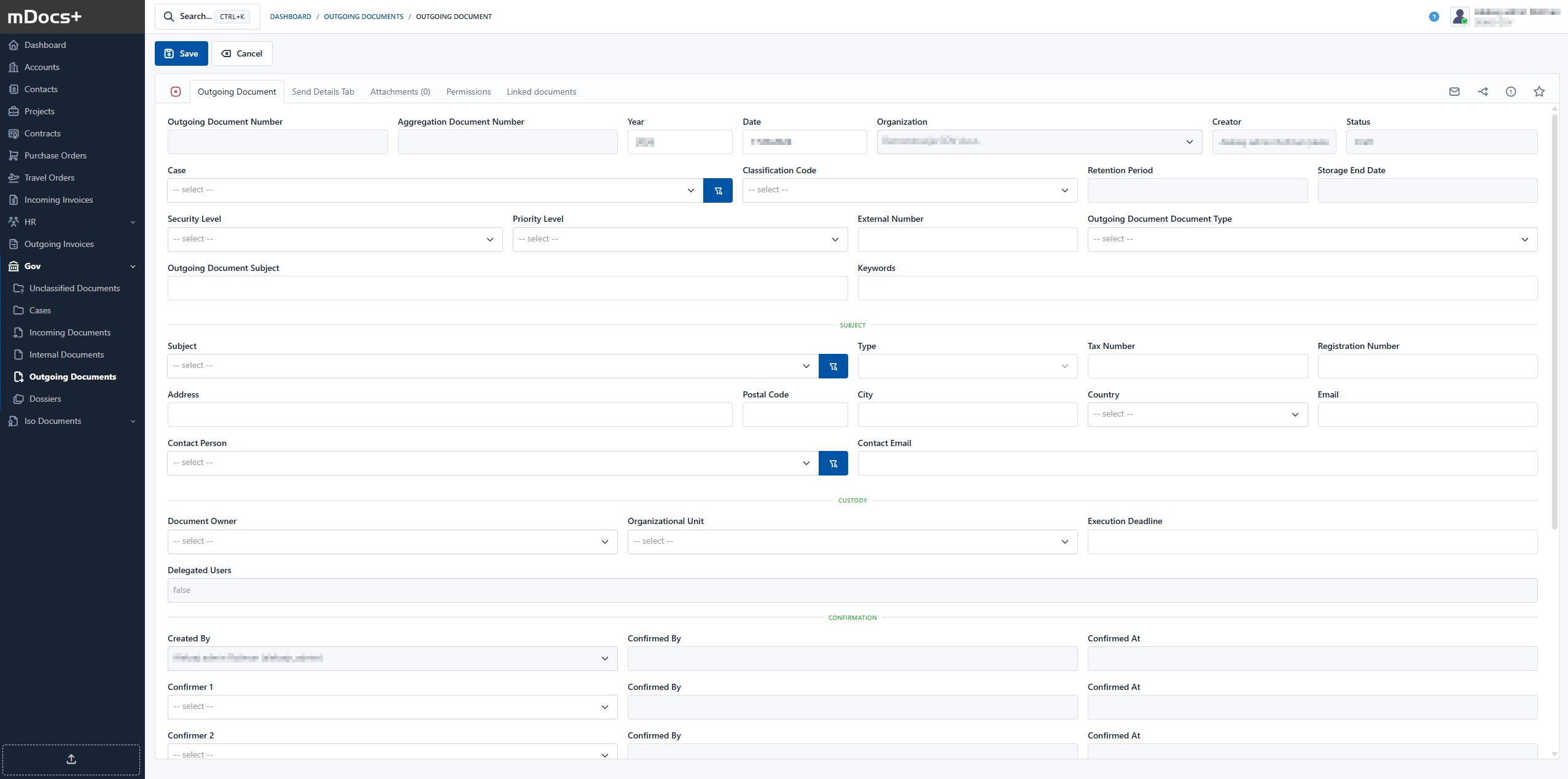
Example Process for Outgoing Documents
Permissions on the document are inherited from the case or set on the individual document, some metadata is also copied, and the document number is determined. The purpose of the outgoing document process is to assign the document to the person for whom it is intended.
Dispatch
Dispatch of outgoing documents is part of the work process that enables prepared documents to be sent to recipients on a selected date and in a selected manner. This is the final step in the document processing procedure, in which it is determined how and when the document will be sent from the organization, either physically by mail or electronically.
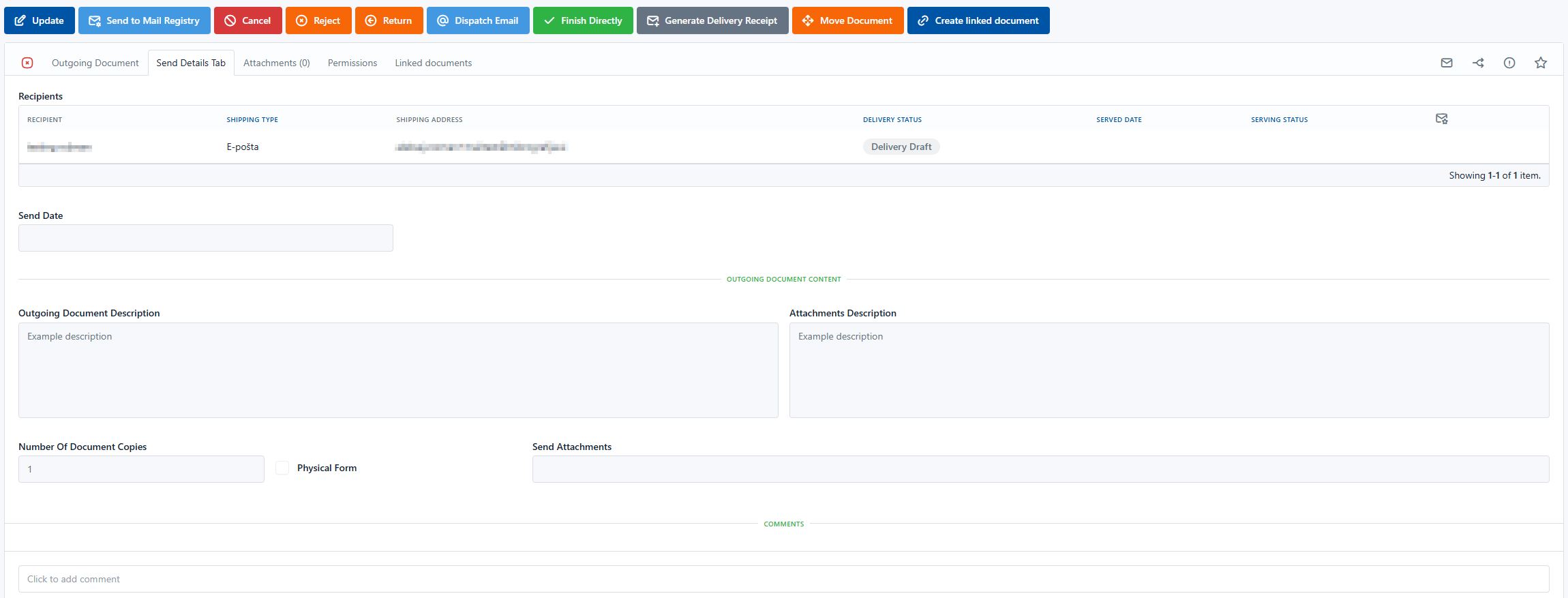
In the document system, dispatch is carried out via the "Shipment" tab and the "Dispatch" action (in the case of physical dispatch) and "Dispatch E-mail" (in the case of dispatch by e-mail), which are intended for managing the sending process. When the user opens the outgoing document and selects the dispatch option, the system displays the basic information about the document and the recipient. The user then determines the dispatch method – this can be, for example, mail, e-mail, personal delivery, or courier service. An important part of the procedure is also determining the dispatch date. This represents the actual day the document will be sent, and it is recorded in the system as part of traceability. This ensures accurate records of all outgoing documents.
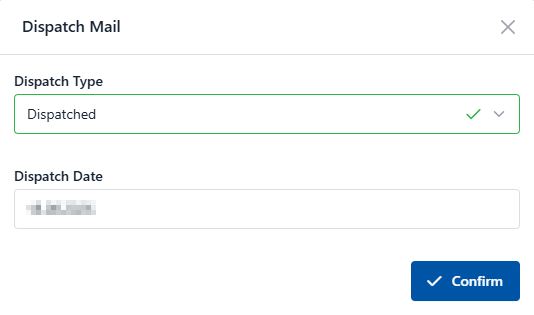
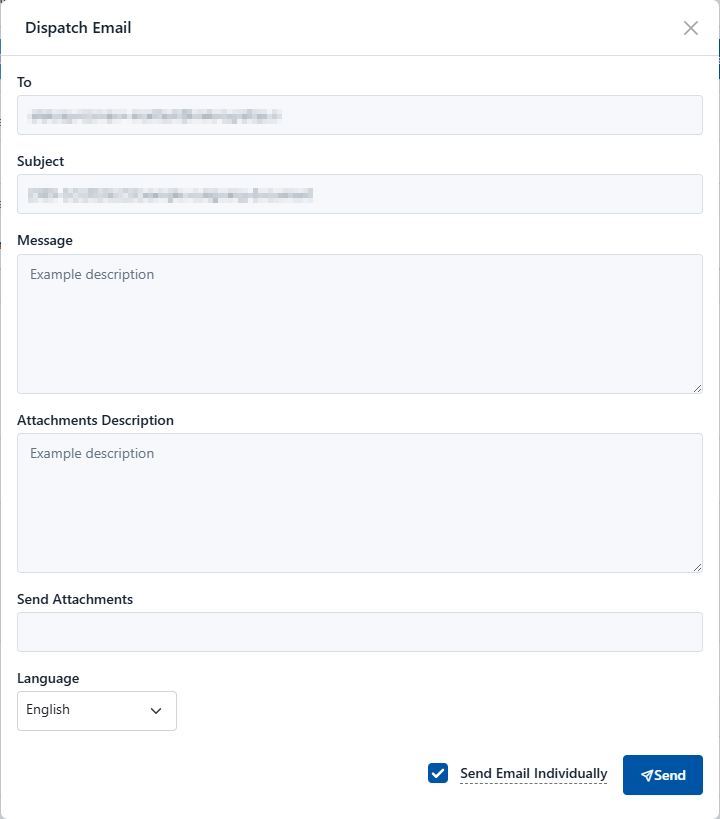
The purpose of the dispatch functionality in the document system is not only to ease administrative work but also to ensure traceability, accuracy, and timeliness in sending important information. Proper use of the dispatch function improves business efficiency and ensures consistency in communication with external and internal stakeholders.
Determining Recipients of an Outgoing Document
When determining the recipients of an outgoing document, it is essential that all relevant addressees who must receive the document are selected. In the mDocs+ system, you can determine recipients in several ways:
- Selection from the directory: The user can select recipients from the organizational directory or from previously saved contacts. This allows for quick and accurate determination of addressees.
- Manual entry: If a recipient is not in the directory, they can be added manually by entering a name, address, or e-mail address.
Adding multiple recipients: The system allows multiple recipients to be specified at once, which is useful when sending documents to several external parties.
Determining the type of sending: For each recipient, it is possible to determine whether the sending is done, for example, by e-mail or regular mail.
Dispatch by E-mail
When dispatching an outgoing document by e-mail, the system allows the message content to be automatically prepared based on data from the Shipment tab. In the Cover Letter Content field, the user enters the main message or text that will be shown in the body of the e-mail. In the Attachment Description field, the user can optionally add explanations or descriptions of individual attachments that will be included with the message. The e-mail subject is automatically filled in with the document's subject. Attachments that have been added to the document are automatically included in the e-mail, and the user can add or remove individual files as needed.
After dispatch is performed, the system automatically records key data, such as the date and time of sending, the message sent, the user who performed the dispatch, and the chosen sending method. The document is then marked as dispatched, which means it has been successfully completed within the document workflow.
Dispatch of Physical Documents
For dispatching physical documents, the "Dispatch" action is used. The action offers the following options:
- In Dispatch State: This action marks that the document is in the dispatch state. It is useful during the envelope-preparation stage and while awaiting sending (e.g., the mail is enveloped and ready to be handed over to a postal service provider).
- Awaiting Return Receipts: This action marks the document as sent and awaiting receipt of return receipts. Once the return receipts are received, the action of marking their receipt must still be carried out. Important: the dispatch process must be completed in the step in which it was started.
Marking Receipt of Return Receipts
Return receipts can be recorded in two ways:
-
Automatically with mScan: Recording is done using the appropriate mScan task. Here it is important that the document is in the process step that allows the task to be performed by the mScan user.
-
Manually: Recording is done manually by clicking the "Return Receipts Received" button.
After recording the return receipts, the "Complete" action must be performed to finalize the process, which is usually done by the user who carried out the dispatch of the document.
The "Send to Registry" Action
The "Send to Registry" action is used in cases where outgoing documents are physically dispatched by the registry office or the organization's central office. When the user selects this option, the document is marked in the system as ready for dispatch and handed over for processing to the registry office. The registry office then takes responsibility for dispatching the document, whether by mail, courier service, or another appropriate method.
The dispatch procedure ensures that the entire dispatch process is traceable and centralized, since the registry office and other stakeholders have an overview of all documents that need to be sent and the status of their dispatch. This reduces the possibility of errors, lost documents, or unauthorized sending, while also ensuring compliance with the organization's internal rules.