Gov Module
The GOV module enables comprehensive management of documents related to various procedures and cases in the organization. It allows users to easily track incoming, outgoing, and internal documents, classify and search them, and link them to the appropriate cases. The system also supports electronic signing (using the mSign solution), automatic generation of documents based on templates, and tracking of document statuses throughout their entire lifecycle.
In addition to the basic functionalities for working with documents, the module includes advanced options for filtering, notifications, and integration with other modules of the system. This ensures transparency, traceability, and efficiency in managing documentation, and contributes to greater legal security and business compliance.
Module Overview
The module's contents are available in the GOV section
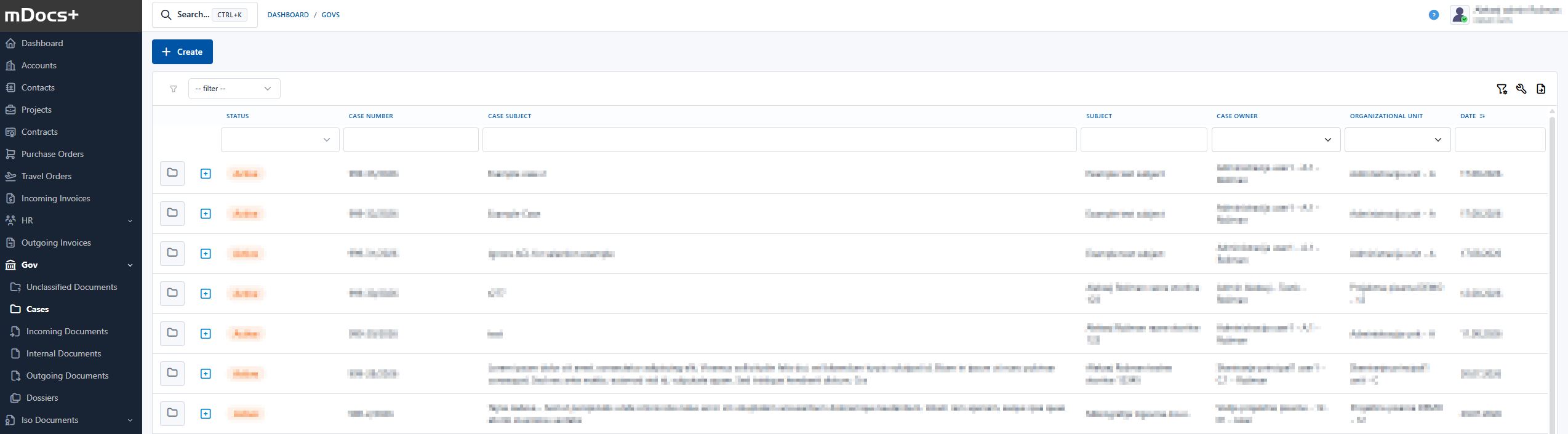

Links to Documents
Within the GOV module there are sections based on document type
- Cases
- Dossiers
- Incoming Documents - an original or reproduced record that the company has received and that is relevant to its business;
- Internal Documents - an original or reproduced record created during the company's operations that is relevant to its business and that the company did not send to another recipient. It is intended for internal use or internal communication between organizational units (hereinafter: OUs), i.e., between projects, sectors, departments, etc.
- Outgoing Documents - an original or reproduced record created during the company's operations that the company forwarded to another recipient;
Document Number
The number is the registration mark of the document, composed of the case number and the sequential number of the incoming, outgoing, or internal document within the case.
Case
A case is the totality of all documents and attachments relating to the same subject matter or task. Cases arising from the company's operations must always contain all documents with attachments relating to the case. The case is kept in a cover (folder), in which the documents are arranged and filed in chronological order (documents of the same case are filed by the date received or created).
Classification Code
The classification code is a numeric code taken from the classification plan, used to classify cases by content.
Signing Code
A signing code is a designation used to assign documents from an application (case) for resolution, review, reading, approval...
Case Number
The case number is the registration mark of the case, composed of the classification code, the sequential number of the case within that code, and all four digits of the year in which the case was created.
General/Shared Actions
Confidentiality Levels
In Brief
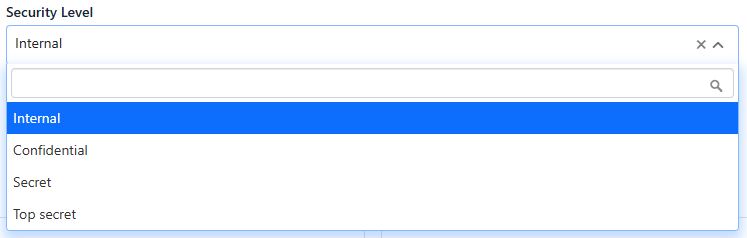
This functionality allows the setting of confidentiality levels on cases or documents in a case. This ensures the ability to adjust the level of information protection according to its sensitivity. By default, the following levels are available: none, internal, confidential, secret, and top secret.
Warning: Documents with higher confidentiality levels require additional security measures beyond the scope of the document system. The organization must, based on its own risk assessment, determine and implement appropriate measures for the secure handling and protection of such documents.
The user can select the confidentiality level for an individual document:
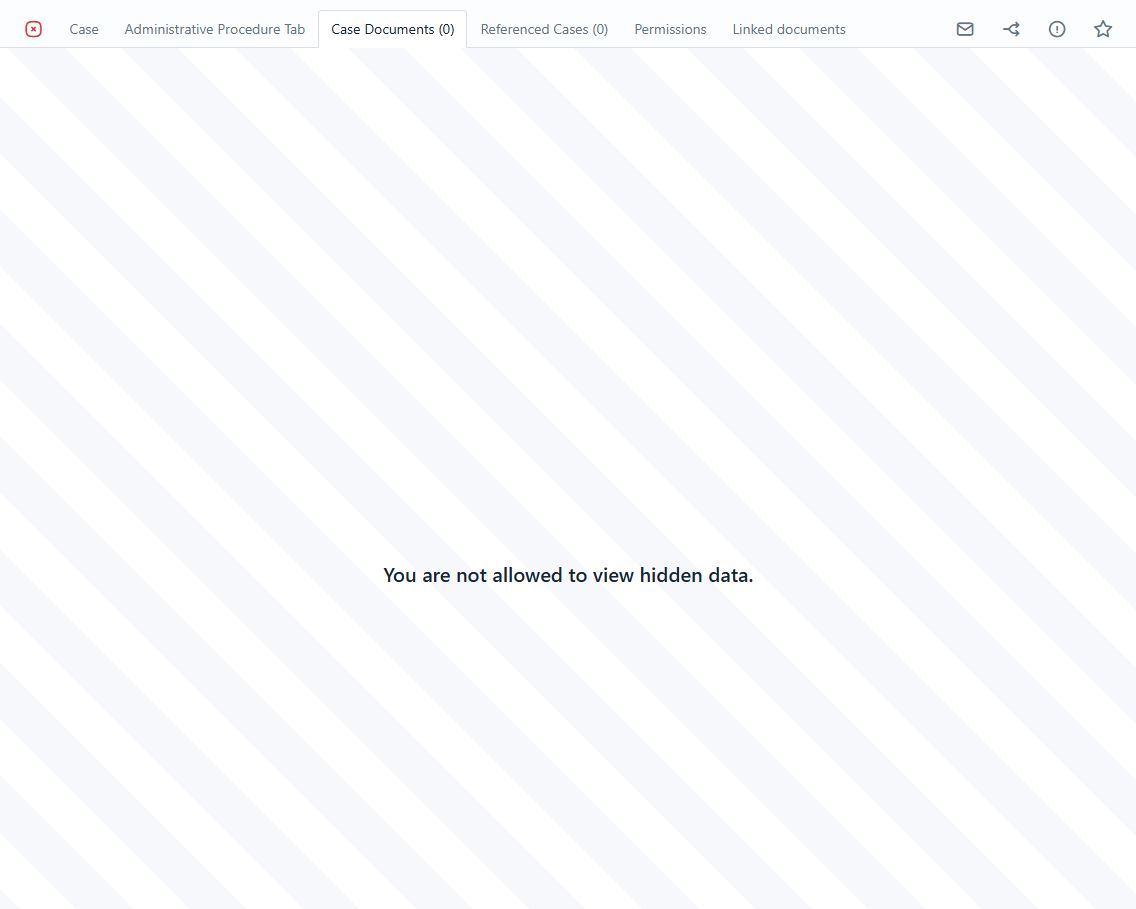
This can hide predefined tabs:
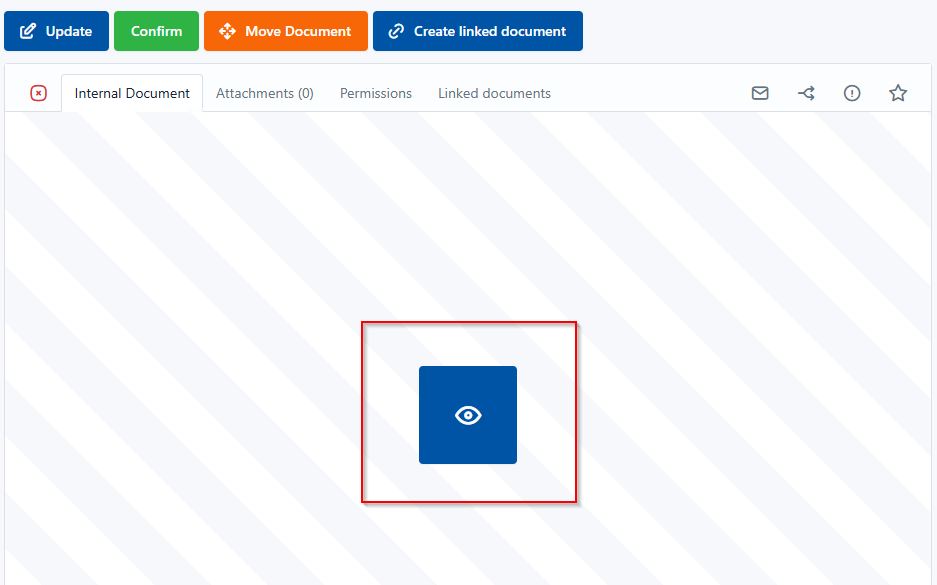
Entities with access will see a button that allows them to view the document:
Move Document
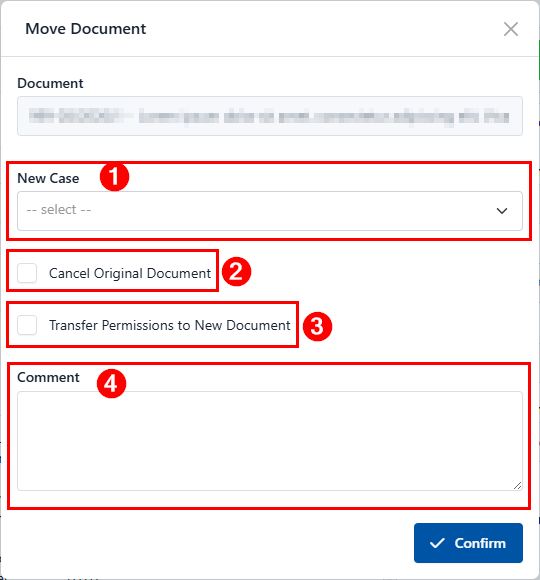
Clicking "Move Document" opens a popup window for transferring a document from the current case to another case.

In the popup window, we select the new case (1) to which we want to move the current outgoing document. We also indicate whether we want to cancel the current document in the existing case (2) and/or transfer permissions from the current document to the new case (3). A comment is also available, where we must enter the reason for this action (4).
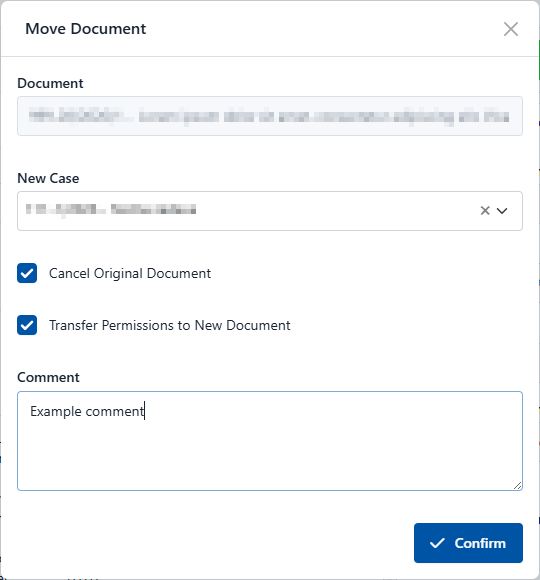
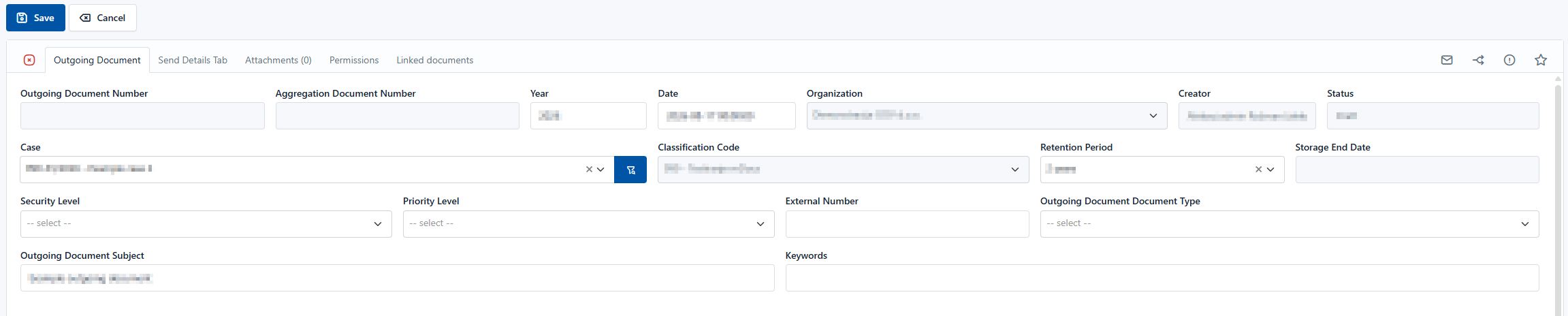
After clicking "Confirm," the outgoing document opens with the new case already selected. We complete the action by clicking "Save." The document receives a new sequential number in the new case.
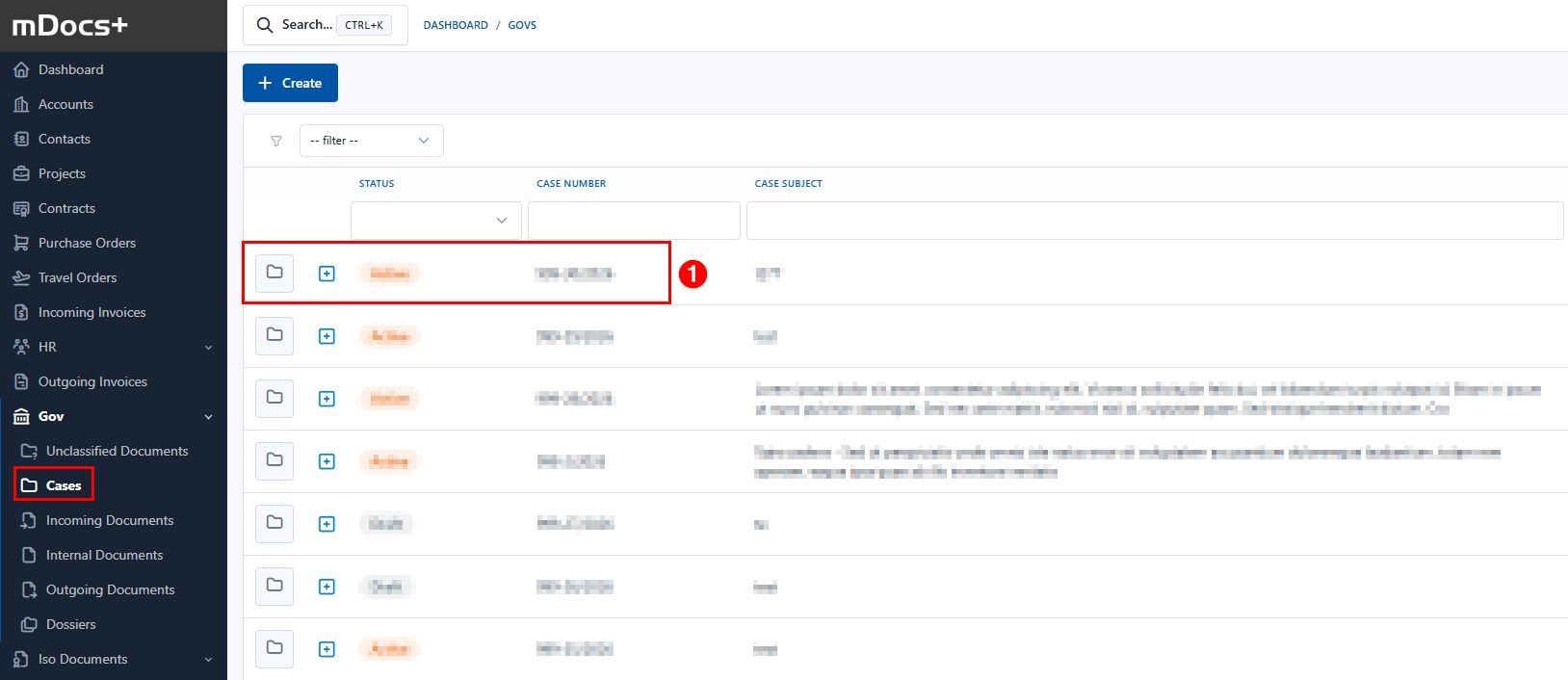
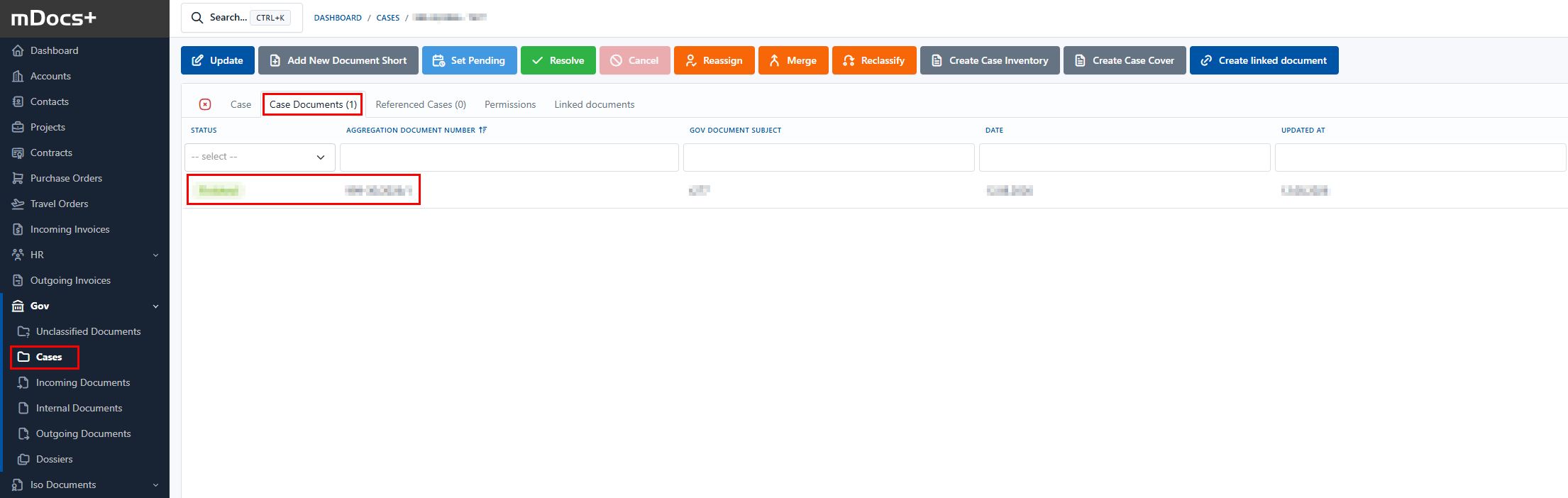
Finally, we can check whether the document was correctly assigned to the new case. We search for the case (1), and on the case's "Documents in Case" tab we see the transferred document (2).
Note: if confidentiality levels are used, moving a document to a new case also adopts the new confidentiality level.