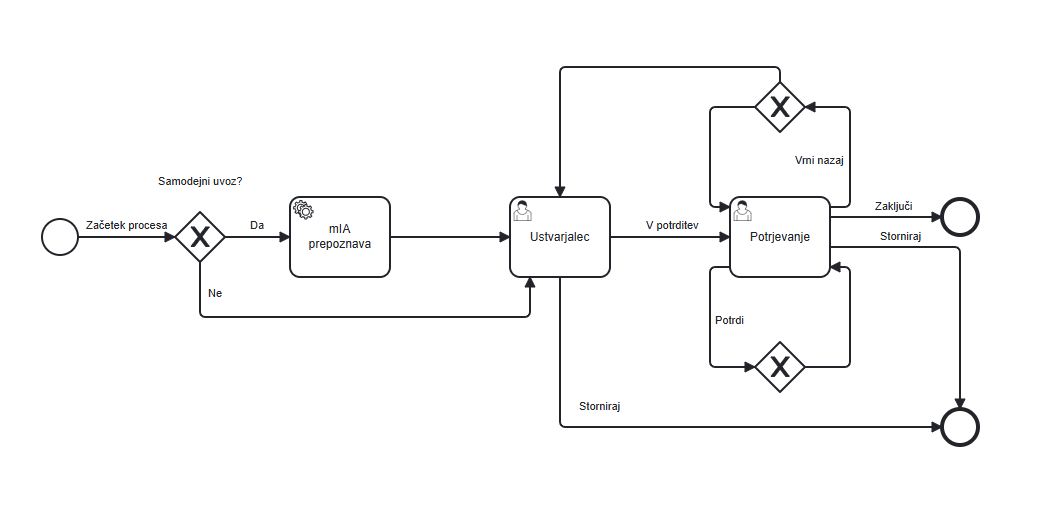
Incoming Mail Module
The Incoming Mail module is designed for the efficient management of incoming documents in the system. This module makes it easy to add and view documents and to define workflow processes for incoming documents.
Adding Incoming Documents
To add a new document to the system, follow the steps below:
- On the main page, select the
Addoption. - Enter the document details, filling in the required fields.
- Once you have entered the data, click
Saveto add the document to the system, or Cancel if you do not want to save the changes.
An incoming document can also be entered into the system by scanning it directly using mDocs+ functionality, or by importing it from e-mail — either from dedicated mailboxes or from users' own e-mail — where received documents can easily be imported into the Incoming Documents module using the Drag & Drop functionality. The available options for digitizing physical documents depend on the configuration for your organization.
Viewing Incoming Documents
To view documents:
- In the document list, select the document you want to view.
- The document opens on the right for viewing.
Managing Incoming Documents
To edit or update document information:
- In the document's detail view, click
Edit. - Change the desired information in the edit form, in edit mode.
- Once you have finished making changes, click
Saveto update the document information, or Cancel if you do not want to save the changes.
Document List
The results list, or document list (hitlist), of incoming documents displays a listing of all incoming documents and some of their metadata. More about document lists can be found in the chapter > Document List It allows users to quickly view, filter, and search by key metadata, such as receipt date, sender, document type, and processing status.
Document Status Colors
Records or documents can be in various statuses throughout their processes. Basic meaning of the icons:
| Color | Meaning | Description |
|---|---|---|
| 🟢 | Completed | The document is completed |
| 🟠 | In progress | The document is in the receiving process |
| 🔴 | Cancelled | The document has been cancelled |
| ⚪️ | Draft | A new record with all required metadata |
Default Incoming Document Form
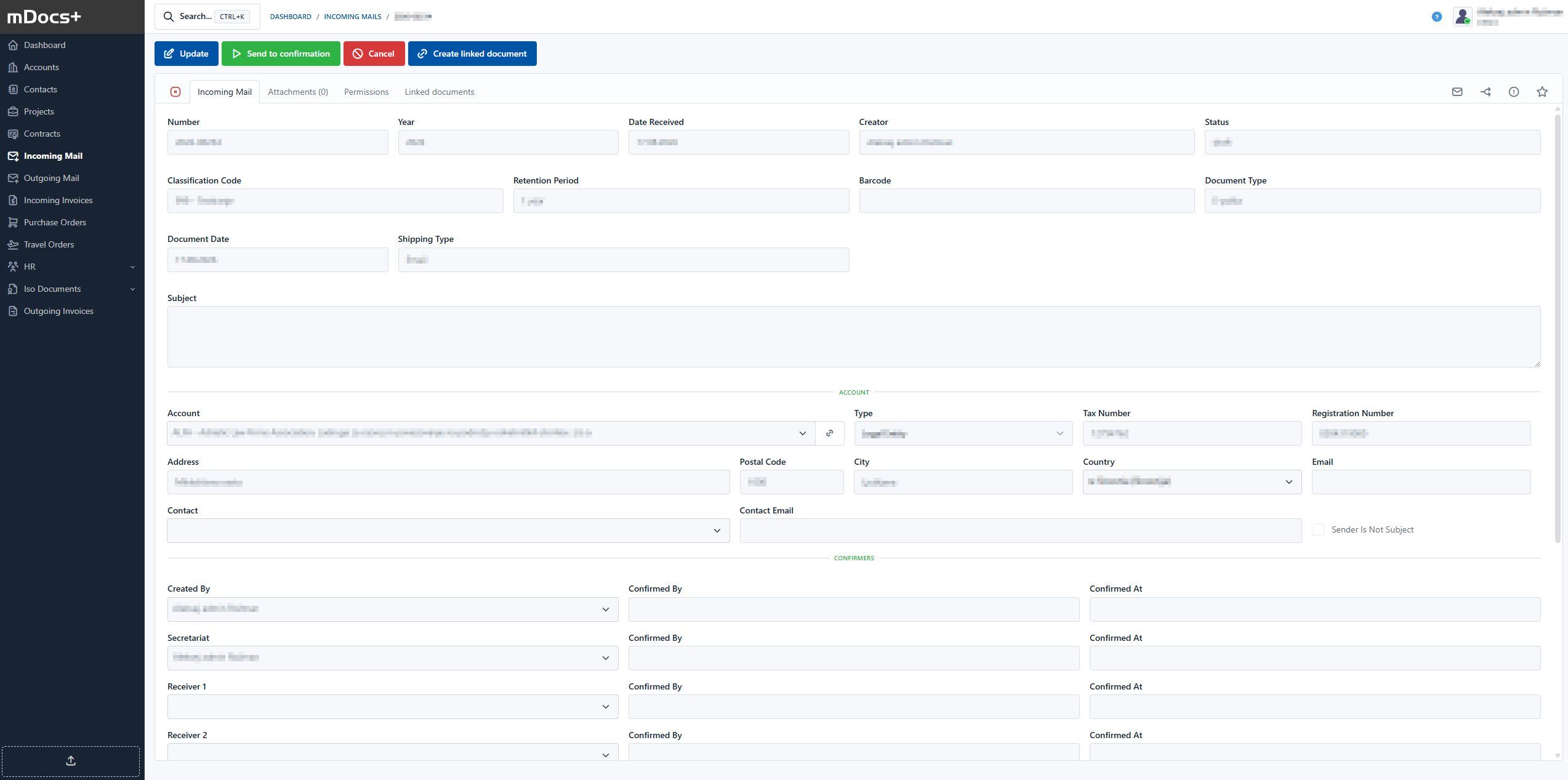
Example Incoming Document Process