Two-Factor Authentication
Two-factor authentication (2FA) adds an extra layer of security to your account by requiring two verification steps before you can access your account. This means you will need something you know (your password) and something you have (for example your phone or a security key).
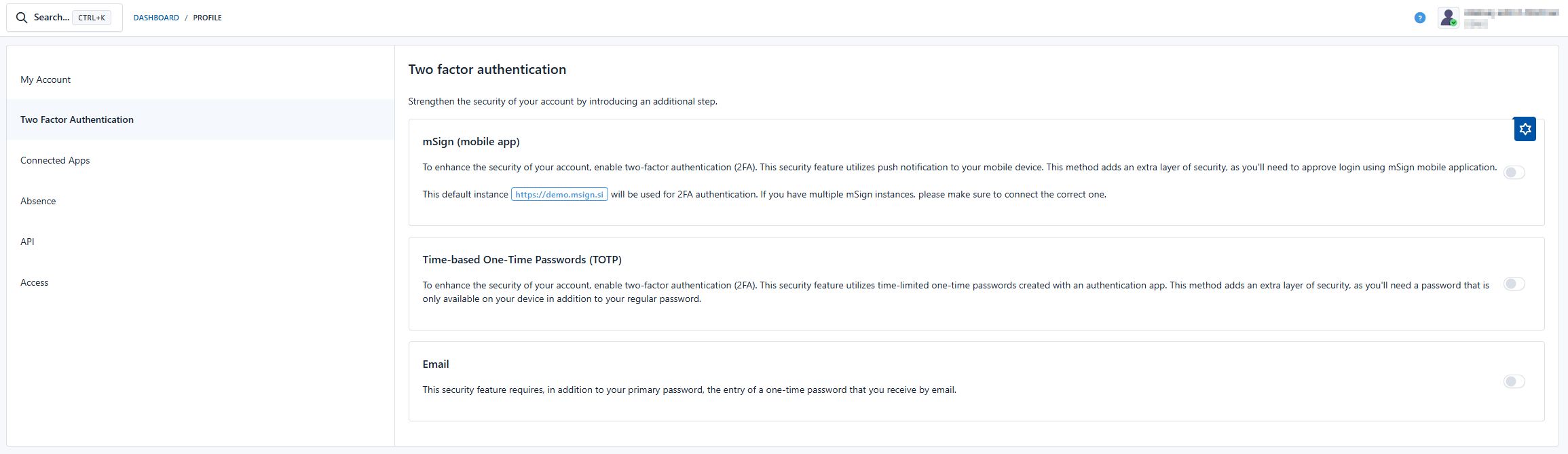
mSign (mobile application)
To activate this option you need the mSign mobile application
- To enable this feature, toggle the switch to the right and follow the setup instructions in the mSign app.
Time-Limited One-Time Passwords
To activate this option you need a mobile application that generates one-time passwords.
The following applications are available: Android or iOS
- To enable this feature, toggle the switch to the right and follow the setup instructions in the authenticator app.
Email
For additional security, you can enable receiving one-time passwords via email.
- To enable this feature, toggle the switch to the right and follow the instructions to set up email authentication.
SMS
For additional security, you can enable receiving one-time passwords via SMS message.
- To enable this feature, toggle the switch to the right and follow the instructions to set up email authentication.
Conclusion
After activating two-factor authentication, you will need to enter both your regular password and the one-time password generated by your chosen authentication method when logging in. This ensures that you are the only person who can access your account, even if someone else knows your password; if you set up multiple methods, you can choose the one that suits you best when logging in.