It is important that the user configures these settings before the absence begins.
Absence
In the document system, a user can set up user absence, which allows business to continue uninterrupted even while the user is absent, e.g. due to vacation, sick leave, or other absences. This ensures that tasks, documents, and obligations tied to the absent user do not stall in the system, but are automatically redirected to another authorized colleague. The user configures the absence settings in their profile settings, under Absence.
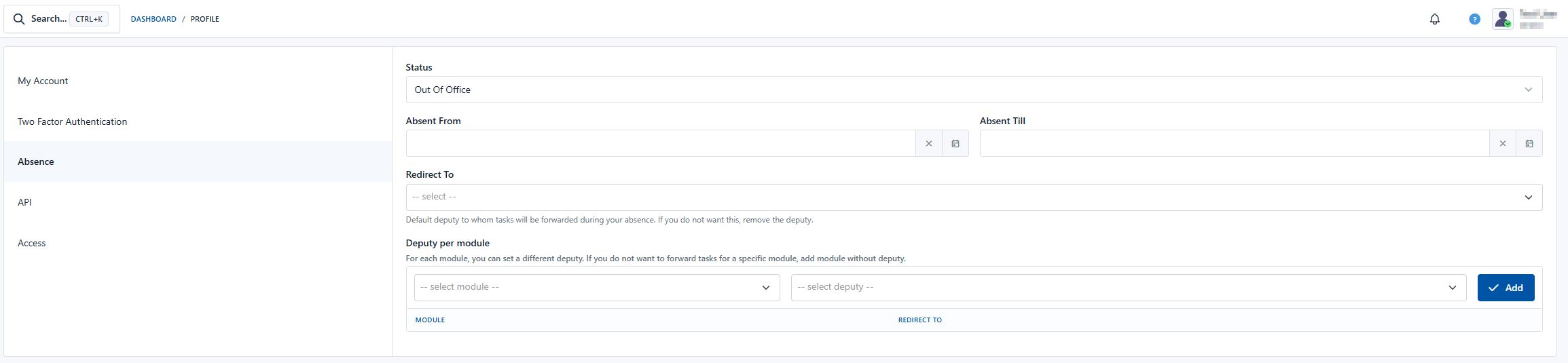
Status
- Status: Select your current status, for example "Out of office".
Absence Period
- Absent from: Select the date and time from which you will be absent.
- Absent until: Select the date and time until which you will be absent.
Setting a Substitute
- Substitute: If you want someone to take over your tasks during your absence, select a substitute from the drop-down list.
- To remove a substitute, click the remove icon next to the selected substitute's name.
Substitute by Module
- Substitute by module: If you want to set different substitutes for individual modules, select a module and then select a substitute for that module.
- Click the "Add" button to confirm your selection.
To apply the selected settings, click the "Save" button.
Forward and Return Tasks
The forward and return tasks feature allows you to manage your work tasks during your absence.
-
Forward tasks: If you will be away and want another user to take over your tasks, you can use the forward tasks option. To do this, select the user from the drop-down list to whom you want to forward your tasks.
-
Return tasks: If your tasks were transferred to another user during your absence and you want to have them returned to you, you can use the "Return tasks" button. This will return all forwarded tasks back to you.
It is important to configure these settings before you leave, to ensure the smooth operation of your work processes.