ISO Documents Module
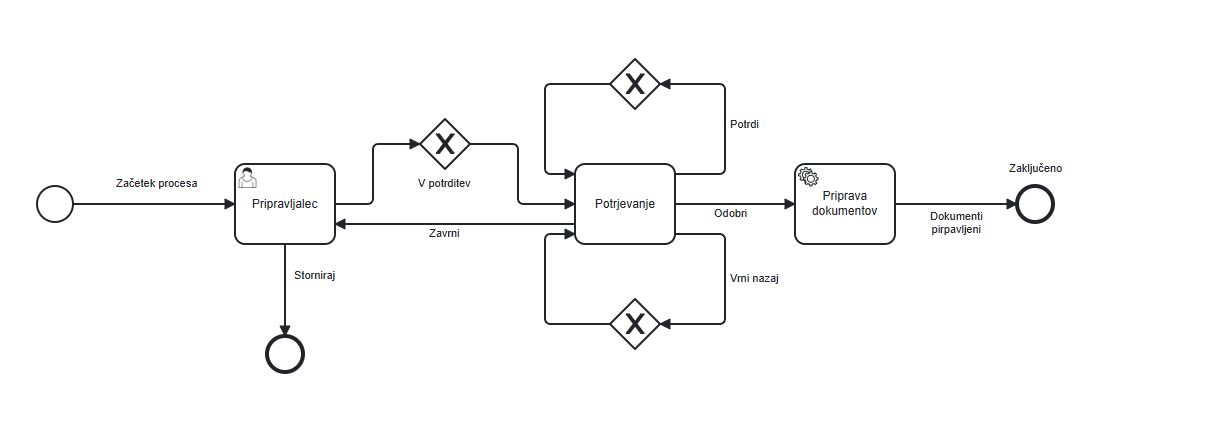
The ISO Documents module in the mDocs+ document management system is intended for storing and managing quality management system documentation or other business documentation, which includes document preparation, the approval and adoption process, notification (distribution), storage, and version management of documents. It allows an ISO document to be prepared through all its phases (drafting, adoption with amendments, final document) based on the working material prepared during the preparation and approval process. The module supports versioning, preparation, review, approval, and notification of internal acts or organizational business documentation within a preconfigured cycle. It provides clear support for building formalized documents and managing them. It allows control over document versions by displaying the current valid version and providing insight into all previous versions of the valid document. The ISO Documents module also allows you to use an ISO document form directly as a template, with the system ensuring that the valid version of that form is always used whenever the template is used.
Adding an ISO Document
To add a new ISO document to the system, follow the steps below:
- On the main page, select the
Addoption. - Enter all the required information about the ISO document, filling in the required fields.
- Add attachments in the Working Material tab.
- Once you have entered the data, click
Saveto add the document to the system, or Cancel if you do not want to save the changes.
Viewing ISO Documents
To view ISO documents:
- In the list of ISO documents, select the document you want to view.
- Clicking it in the list opens the document on the right for viewing.
Managing ISO Documents
To edit or update information on an ISO document:
-
In the ISO document's detail view, click
Edit. -
Change the information in the edit form. The available settings depend on the configuration for your organization.
-
Once you have finished making changes, click
Saveto update the ISO document information, or Cancel if you do not want to save the changes.
Issuing a New Version and Withdrawing an ISO Document
The system lets you start preparing a new version of the document directly from the current valid version of an ISO document, using the New Version button. The process for preparing and approving a new version is the same as the process for adding a new document. Once the new version is approved, i.e. the approval process is completed, the system automatically marks it as Valid. When the effective date arrives, the system automatically updates the document's status to In Use. At the same time, the status of the previous version is automatically marked as Withdrawn. An ISO document can also be withdrawn without creating a new version, using the document withdrawal button, which marks the document as Withdrawn.
Employee Acknowledgment of the Valid Version of an ISO Document
Selected employees included in the acknowledgment process confirm in the system, by clicking a button, that they have reviewed the document, which is then recorded on the document.
Document List
The document list (hitlist) of ISO documents displays a listing of all ISO documents and some of their metadata. More about document lists can be found in the chapter > Document List It allows users to quickly view, filter, and search by key metadata:
- users who are included in the process for a particular document see, by clicking the ISO Documents module in the document list, the documents at all stages of the process.
- in the navigation menu of the ISO Documents module there is a Valid Documents subfolder for the module; clicking it displays the valid documents in the document list for all users.
Document Status Colors
Records or documents can be in various statuses throughout their processes. Basic meaning of the icons:
| Color | Meaning | Description |
|---|---|---|
| 🟢 | Valid | The document is completed, approved, and in effect |
| 🟠 | In progress | The document is in the approval process |
| 🔴 | Cancelled | The document has been cancelled |
| ⚪️ | Draft | A new record with all required metadata |
Additional status "In Use" — when the ISO document's effective date, i.e. the usage date listed as metadata on the ISO document, arrives. Additional status "Withdrawn"
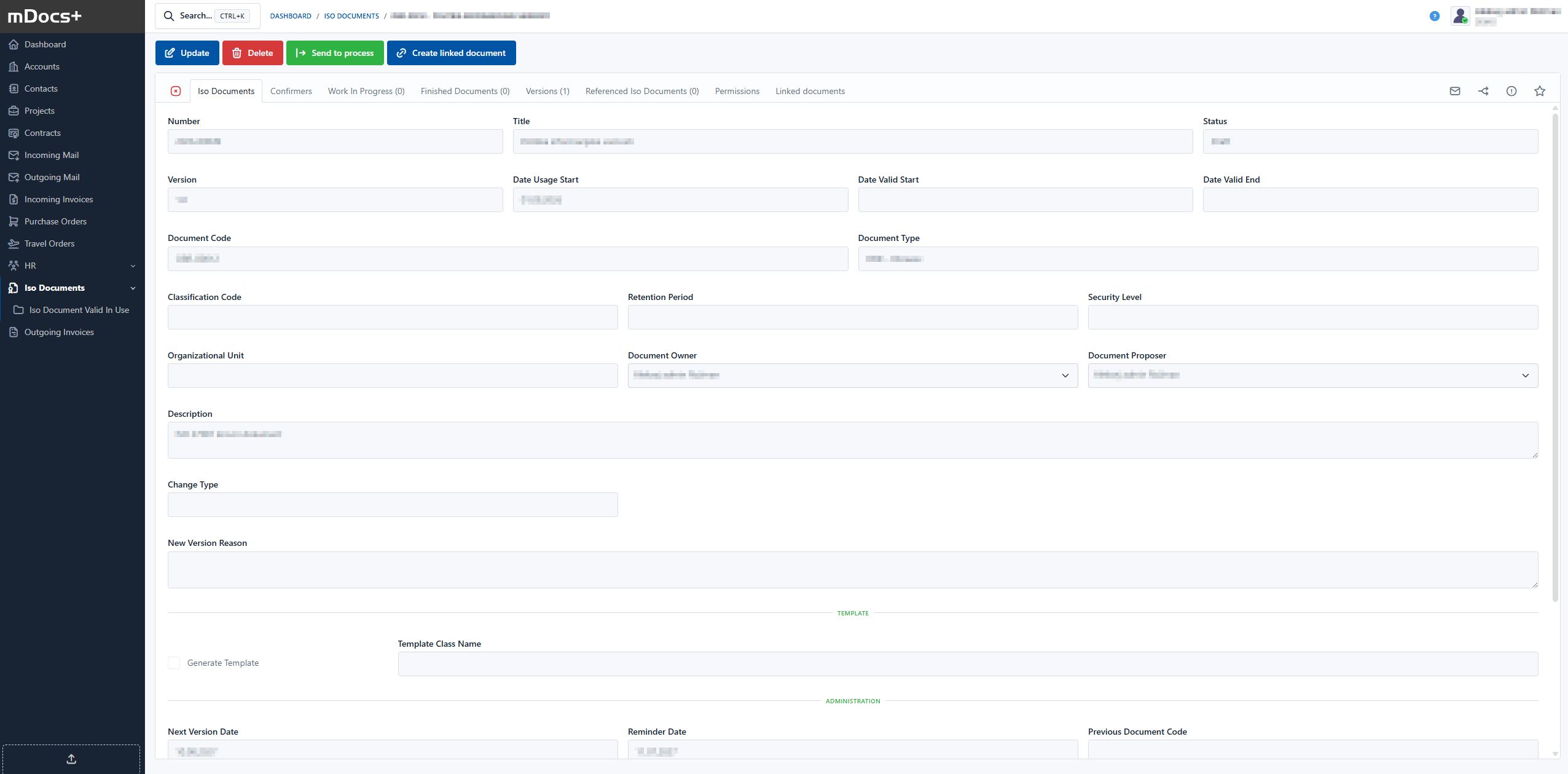
Default ISO Document Form
Example ISO Document Process