Drag and Drop
The "Drag and Drop" feature provides a fast, intuitive and user-friendly way to upload documents or attachments into the mDocs+ system. You can simply drag items or files from your computer or email client (e.g. Outlook) directly into the mDocs+ application.
Key features of the Drag and Drop function
- Import from email
Emails dragged from applications such as Microsoft Outlook are automatically processed as documents. If the email contains attachments, they are automatically added as part of the document. - Automatic metadata completion
If the document contains recognizable information (e.g. contract number, company name, date), the system automatically suggests or fills in this data in the appropriate fields, further speeding up the process.
Procedure for using the Drag and Drop function
- Selecting an item
Drag one or more files (or an email) from your computer or email application into the dedicated "Drag and Drop" area, located at the bottom of the navigation menu or another supported form. - Specifying the document type
After dropping the items, the system will prompt you to select the document type, which determines its processing, metadata form and further use in processes. - Confirmation and further processing
After selecting the document type, click "Confirm". The system redirects you to the document add form, where:- all attachments are included,
- fields are pre-filled (if data is recognized),
- further customization or processing of the document is possible.
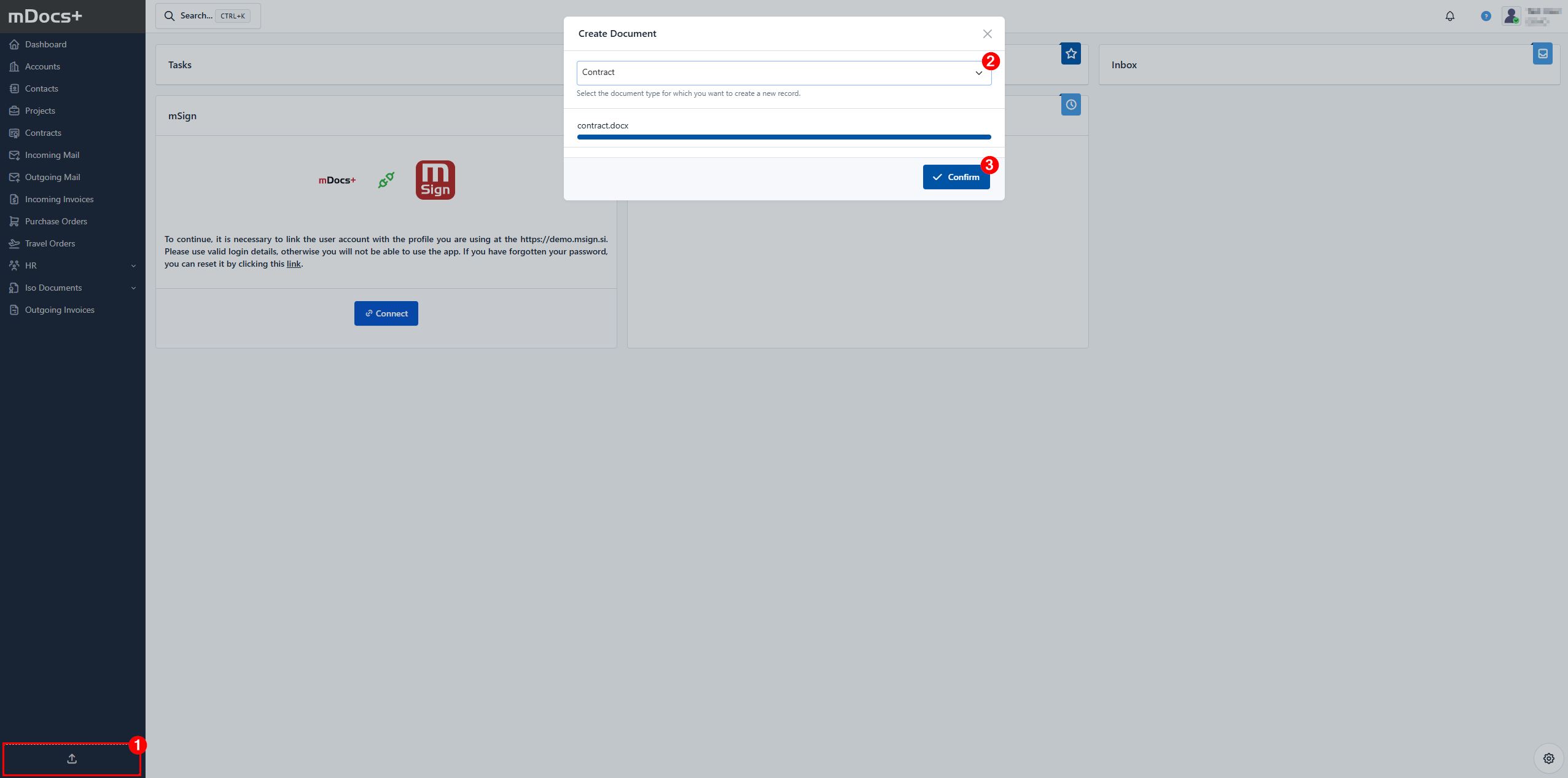
Uploading email with the Drag and Drop function
The document system allows you to easily add email messages and their attachments via the "drag and drop" function, letting you quickly save important business communication directly into a document or case.
- In Outlook (or another email application), locate the desired email message.
- Click it with the left mouse button and drag it.
- Without releasing the button, carry the email over to the Drag and Drop area in mDocs+
- Release the mouse button, the email is uploaded and a window is displayed:
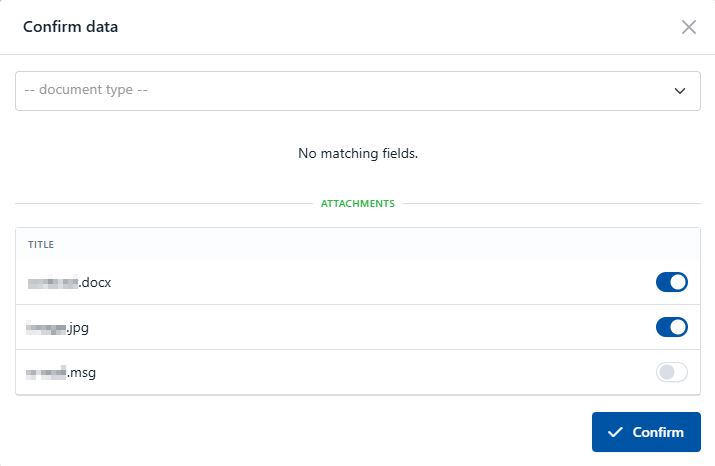
- Select the document type and mark the items you want to upload into the system. Then click Confirm.
Benefits of use
- Faster document addition without manually searching for the file path
- Automatic processing of email content and attachments
- Reduced data entry errors
- Greater productivity