Attachments
The attachments feature allows users to add files to documents, tasks or messages.
Users have the following options for managing attachments on individual modules:
- Adding attachments: Users can add new attachments to documents.
- Deleting attachments: Removing attachments is possible.
- Downloading attachments: Attachments can be downloaded to a local computer or other devices.
- Sharing attachments: Users can share attachments with other users or external partners.
- Viewing attachments: The content of attachments can be viewed directly within the system.
- Editing attachments: Local editing of text, e.g. in Word, is possible.
Viewing attachments
To view attachments, the user selects the desired document and is redirected to the "Attachments" tab, where a list of all uploaded attachments for that document is displayed.

- Viewing attachment content: By clicking on the attachment name, the user can view its content.
- External view: To view the attachment on a new page, the user clicks on the "..." options next to the attachment and selects "External view".
Downloading attachments
The user can download an attachment to their computer.
- Download procedure:
- Click on the "..." next to the desired attachment.
- Select "Download" to save the attachment to the local disk.

Adding attachments
Users can add attachments either by creating a new document or by editing an existing one.
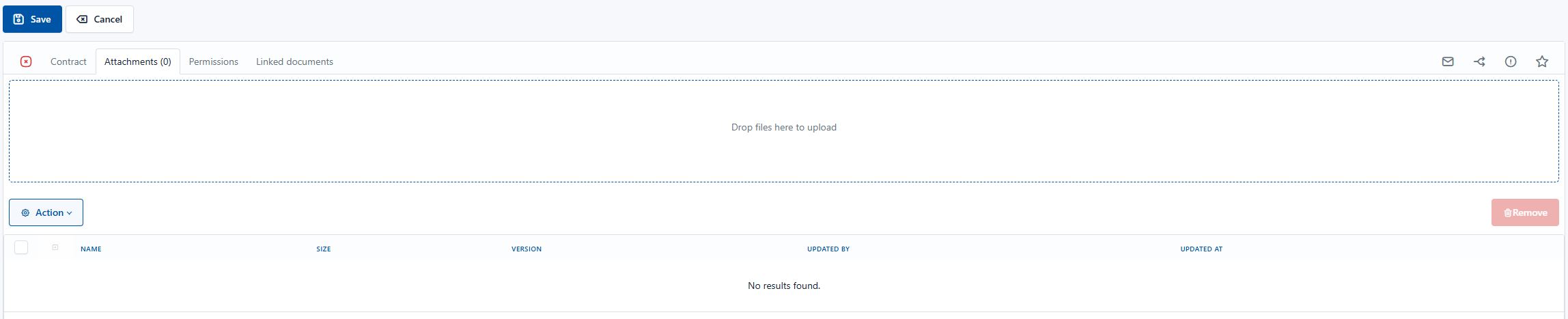
Procedure for adding attachments:
Adding files: The user can drag files directly into the field on the screen or click on the field, which opens a window for selecting files (the user must be in editing mode). Selecting files: Select the desired files for upload, which are then shown in the list. Saving attachments: By clicking "Save", the files are uploaded to the system and added to the selected document.
Deleting attachments
Attachments can be removed when the document is open in editing mode.
- Procedure for deleting attachments:
- Open the "Attachments" tab (the user must be in editing mode).
- Select the attachments you want to remove.
- Click "Remove".
- By clicking the "Save" button, you permanently delete the attachment from the document.
Sharing attachments
You can also share attachments with external stakeholders who are not users of the environment.
- Access attachment options: Click on the "..." next to the selected attachment you want to share, or click on "Operation" and then "Share" to share all attachments.
- Select the share option: From the menu select "Share", which takes you to the next page.
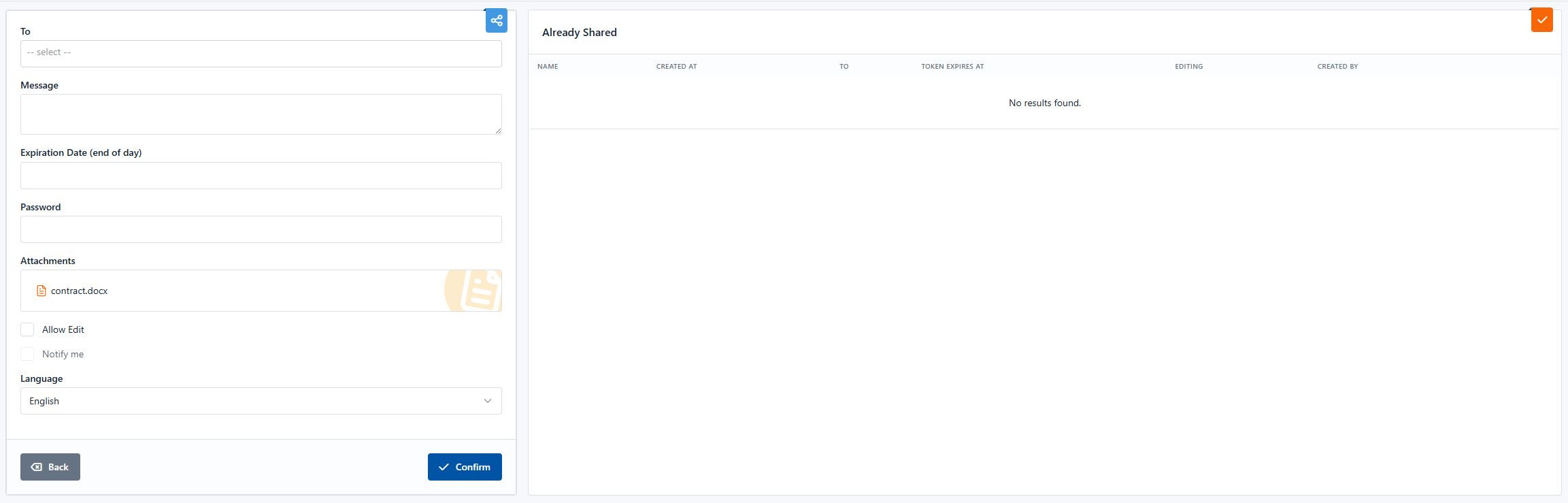
-
Entering sharing data:
- Recipient: In the "To" field, enter the email address of the person you want to share the attachment with.
- Message: Optionally add a message for the recipient.
- Link validity: Set the date until which the link will be active.
- Password protection: For additional security, you can set a password that the recipient must enter to access the attachment.
-
Sending the link:
- After completing the entry, click "Confirm" to send the secure link to the attachment to the recipient.
Managing shared links
Once an attachment has been shared, you can see a list of people the attachment has been shared with on the right side of the screen. This list allows easy management of access and provides an overview of all shared links.
Additional link management options:
- Copying the link: For further sharing, you can simply copy the link by clicking on the relevant icon or option.
- Deleting the link: If you want to revoke access to the attachment, you can delete the link. This makes the link invalid, preventing further access to the document.
Sending a document for signature
The "Send for signature" feature allows easy electronic signing of documents using the mSign service, provided that this service is activated and integrated with your mDocs+ system. For details on setting up the connection between your environment and mSign, see Setting Up the mSign Connection.

How to send a document for signature:
- Access the feature: Select the documents you want to send for signature, click on the "Operation" button.
- Select the signature option:
- From the menu select "Send for signature (mSign)".
- Redirection and signing:
- After selecting this option, the system automatically redirects you to the mSign interface.
- Follow the instructions in mSign to continue the process and send the document for signature.
Editing attachments
In editing mode, the user can edit an attachment through local text editing, e.g. in Word. On the selected attachment, select Edit and the file opens in Word. Once the user makes the desired change, they Save and close Word. The document in the system is also saved. A new version of the file is created, which is generated with every Edit and Save performed this way with the local editor. Instructions for installing the component required for this can be found in the chapter Installing the Local Editing Component.