Dashboard
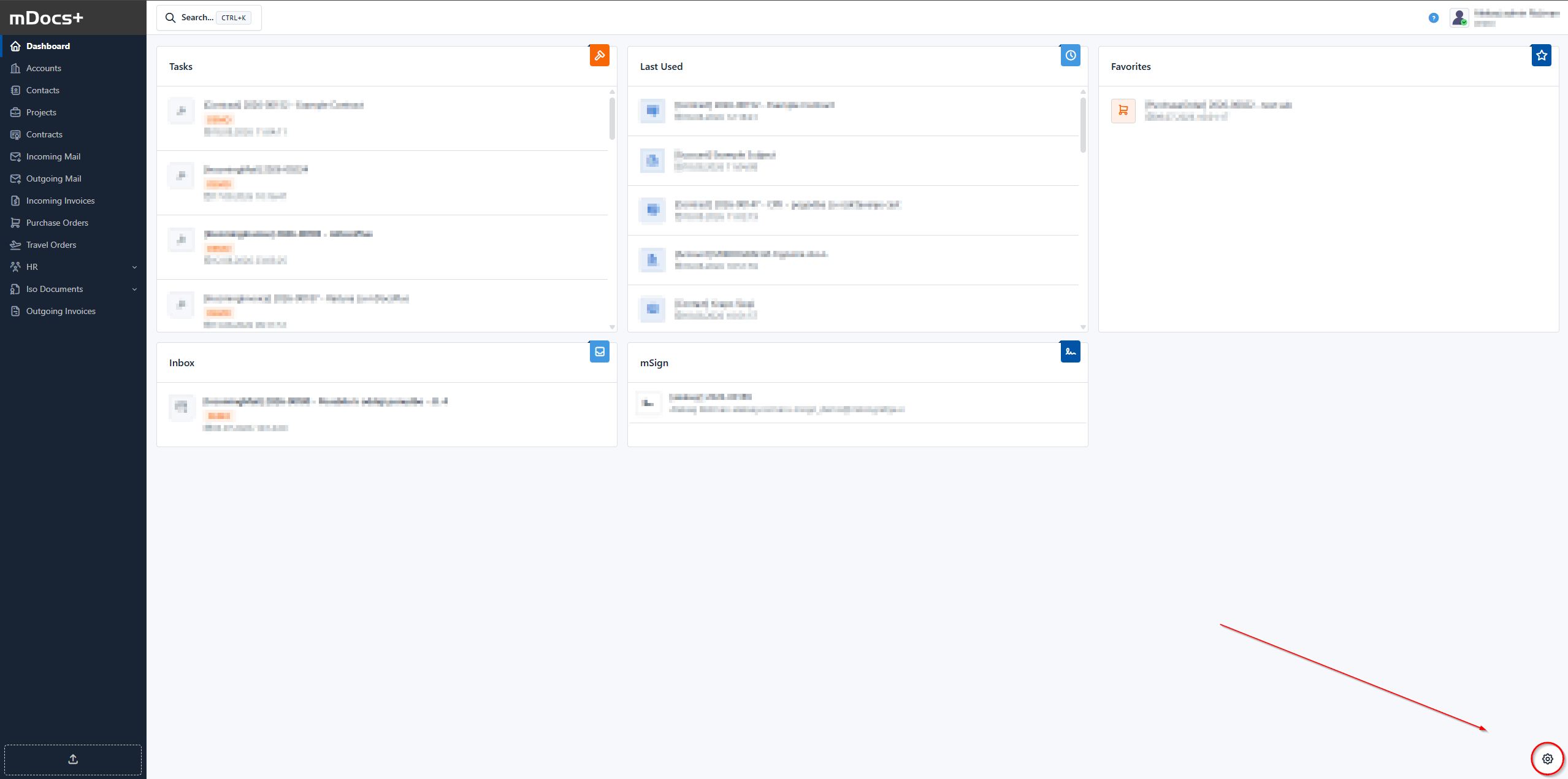
The dashboard in mDocs+ is the central place where users can customize the display of information according to their wishes and needs. In the bottom right corner of the dashboard is an icon for managing widgets, which allows you to select and arrange widgets.
What is the dashboard?
The dashboard is a central overview area that shows the user, for example:
- the status of tasks or documents,
- favorite documents,
- signing status (mSign),
- recently used documents,
- received documents
Selecting and arranging widgets
To customize the widgets on the dashboard, follow these steps:
- Click the edit button in the bottom right corner of the screen, symbolized by a gear icon. The dashboard switches to editing mode.
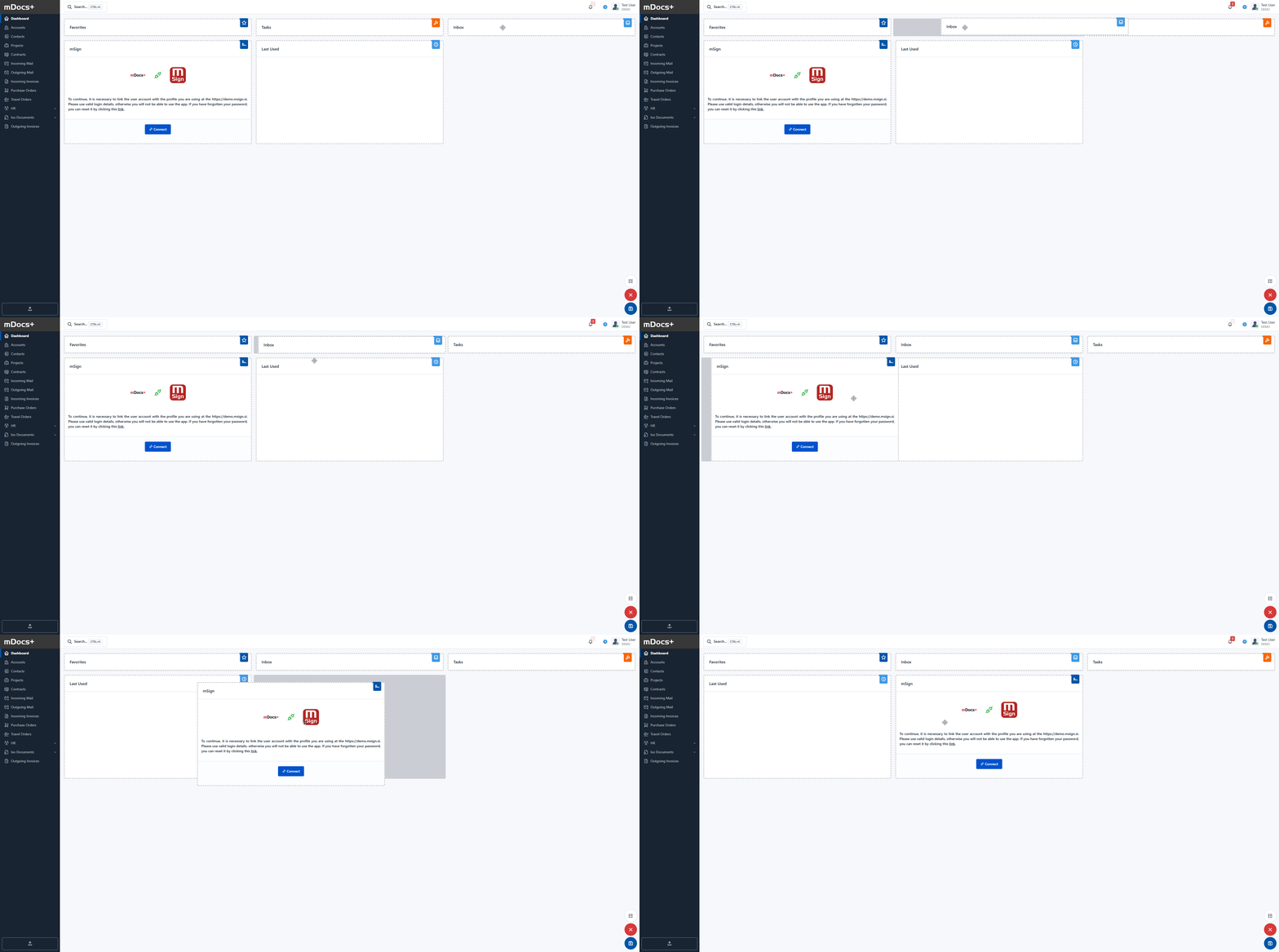
- In editing mode you can move widgets using the "Drag & Drop" feature to the desired location on the dashboard.
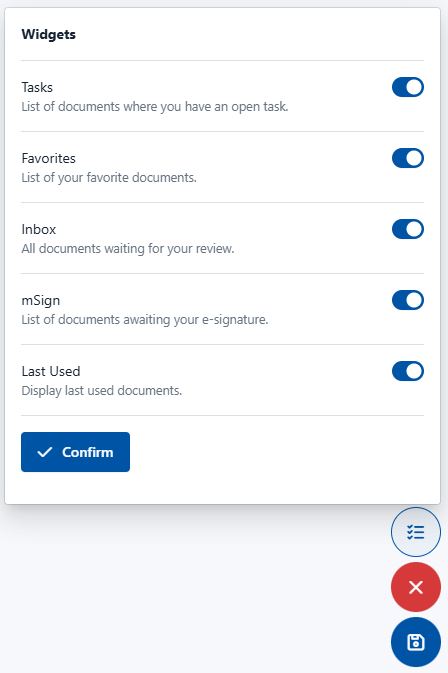
- To show or hide specific widgets, click the button at the top of the menu. After selecting the widgets you want to see, click the "Confirm" button to save the settings.
- If you decide you don't want to save the changes, simply leave editing mode without confirming, or close the editing window.
List of widgets
By clicking on the top part of the menu, which opens after clicking the widget-editing button in the bottom right corner of the interface (symbolized by a gear icon), a window opens with a list of available widgets (widgets, plugins), such as:
-
Tasks: A list of documents where the user has an open task.
-
Favorites: A list of documents the user has marked as favorites.
-
Received: All documents awaiting your review.
-
mSign: A list of documents awaiting your electronic signature.
-
Recently used: Show recently used documents.
Moving the toggle to the right enables the widget, and moving it to the left disables it, meaning each user individually configures the desired content on their dashboard in the system, while also arranging the appearance of their dashboard through this rearrangement.
Clicking Confirm applies the selected settings.