Scanning documents directly from mDocs+
The document system allows you to add attachments to documents by scanning.
Requirements for correct operation
Before first use, check:
- That you have a scanning device (scanner or multifunction device) installed and working
- That the device is connected to the computer
- That you have the mDocsX component installed and running
- That you have the NAPS2 component installed and running
- That the appropriate TWAIN drivers are installed (the recommended choice for the best compatibility)
Attachment scanning procedure
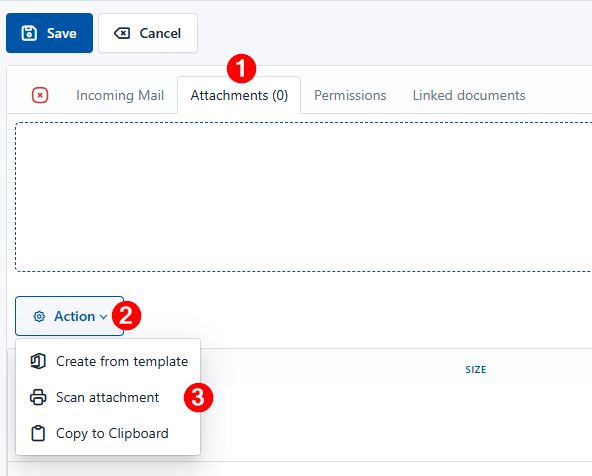
- Open the document where you want to add the scanned attachment, and click Edit (the document must be in edit mode)
- Select the Attachments tab
- Click the Scan attachment option
- In the NAPS2 tool, select Scan
- After scanning is complete and any file editing is done, select the Save PDF option
- Change the file name or not, and complete the save
- Once scanning is complete, the document will automatically be added to the attachments
