Document approval, additional approval, and actions on documents
Document approval
Document approval can follow a preset process, or approvers, recipients, and stakeholders on a given document can be added ad hoc during the process. The buttons at the top of the document show which actions the user reviewing the document can perform at that step. The set of actions depends on the document's process, and may include, for example: Approve, Reject, Edit (Save, Cancel), Return to previous step, Cancel, ...
The document approval process, actions on the document, and the set of actions depend on your organization's configuration.
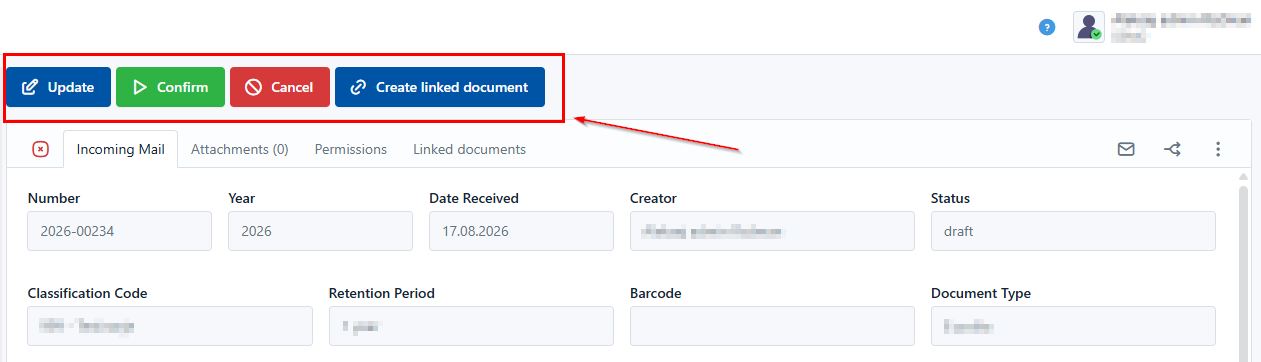
The actions available to the user on the document are displayed at the top of the document:
Adding comments to a document
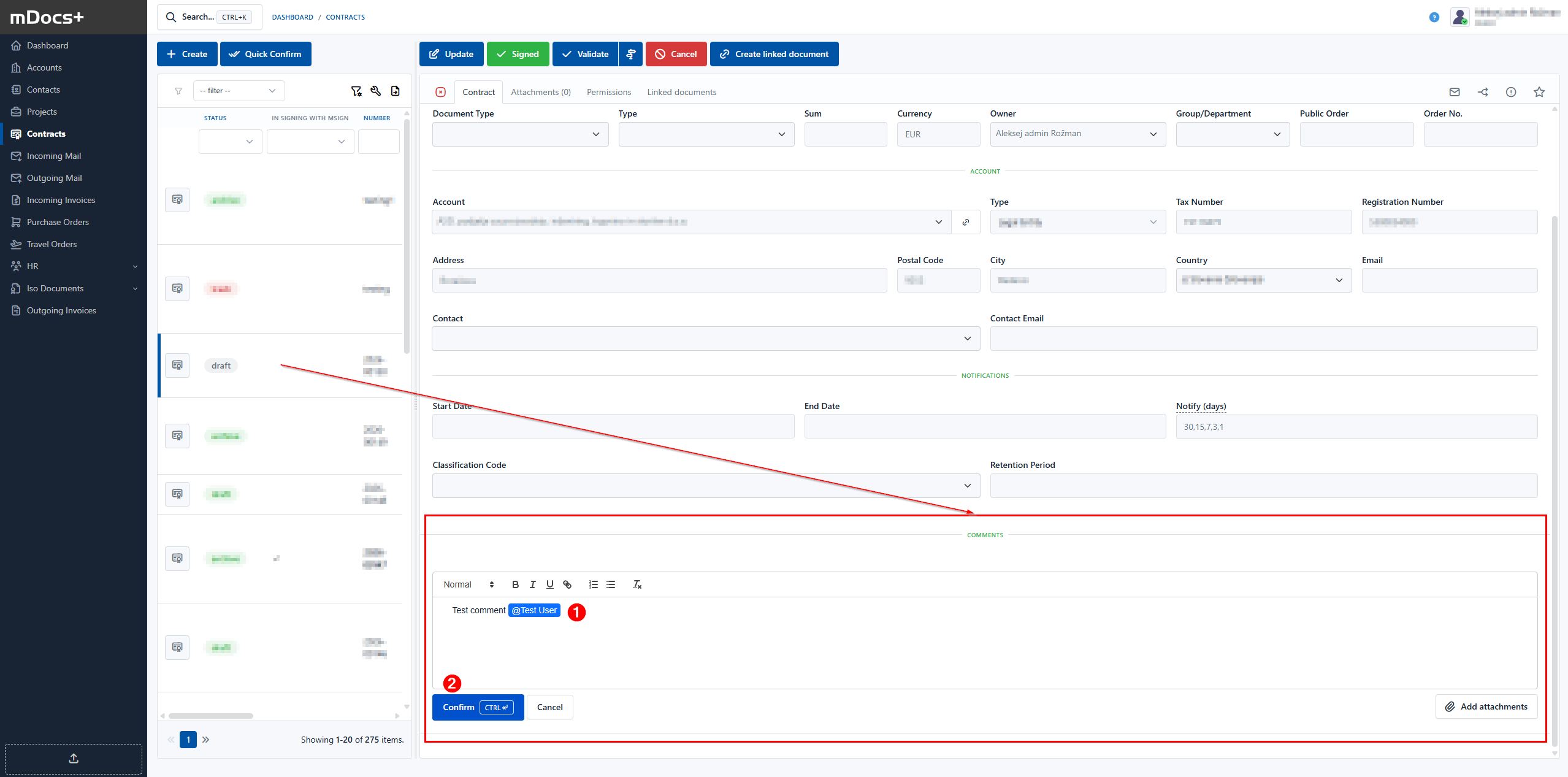
A user with access to a document can add a comment to the document and, using the @ function, tag another user to whom the comment is addressed. You can format the comment or include additional attachments in it. Clicking Confirm gives the tagged user access to the document and they receive a system notification.
 The tagged user receives a system notification within mDocs+:

Including additional approvers
A user can include an additional approver in a document's process by using the @ function in a comment on the document and selecting a user from the list — a so-called user mention. You can also add an instruction about what you expect from them, or other information. You can also attach attachments to the comment. Clicking Confirm adds the comment, and an additional click on "Create task" creates a task for the selected users, thereby including them as additional approvers. The additional approver receives the task in the Tasks folder, which they access from their dashboard. The document remains in process with the main user, who takes further process actions on the document based on the additional approvals received.
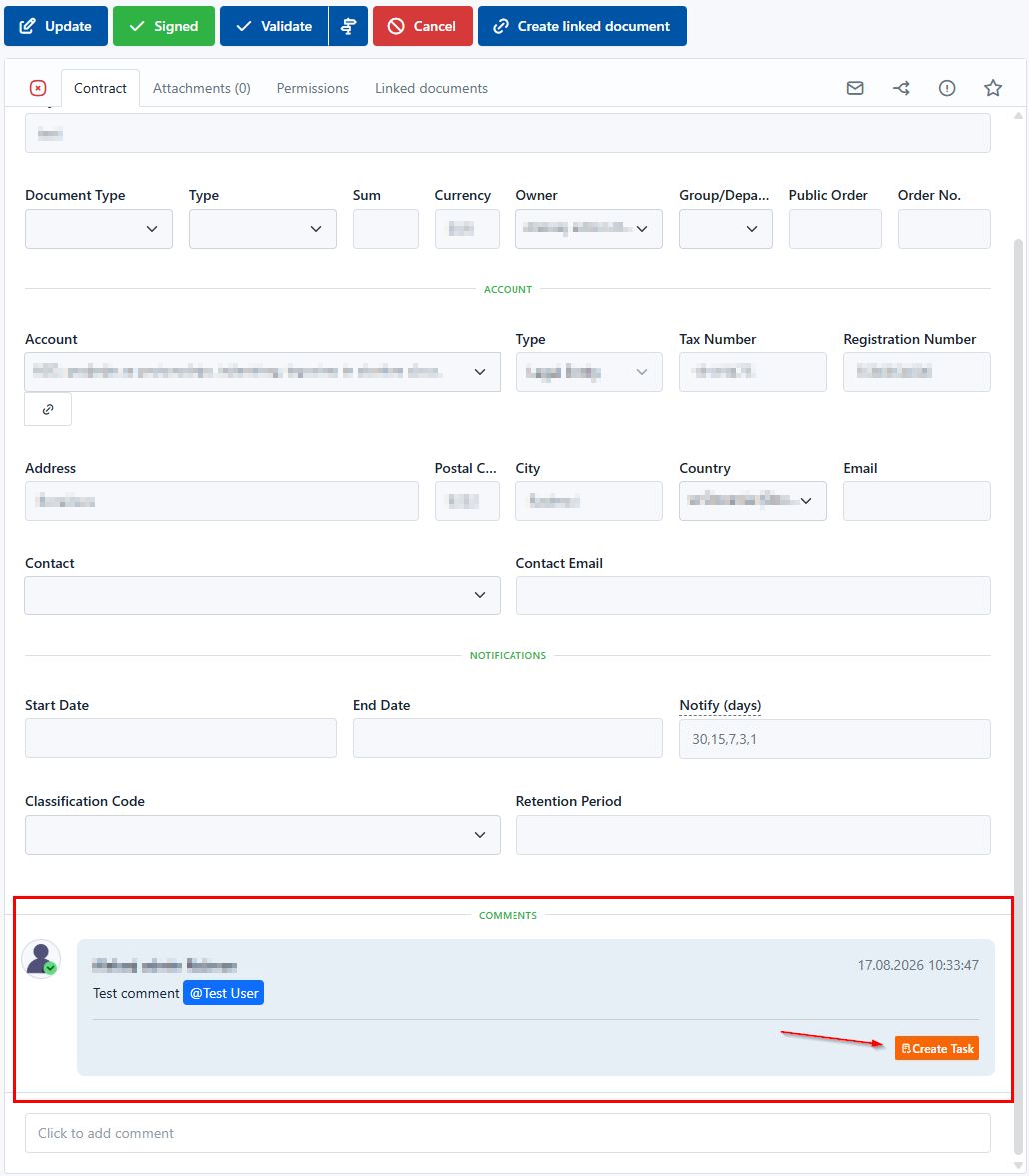
You can track the approval status for each additional approver added in this way.