Document overview
mDocs + allows for easy overview of documents and attachments. The viewer includes access to the content, history, metadata, attachments and enclosures of an individual document.
Accessing a document
You can access a document in several ways, via:
- the selected module (in the module, search, or by filters) and the document list,
- a reminder or task that requires your response (e.g. signature, review),
- the dashboard (a quick link to recent documents).
Clicking on a document takes you to the document view.
Document overview
Clicking on a document opens a viewer window, which usually contains the following tabs and information. Other relevant tabs may be set up on documents within an individual module, depending on your organization's configuration settings.
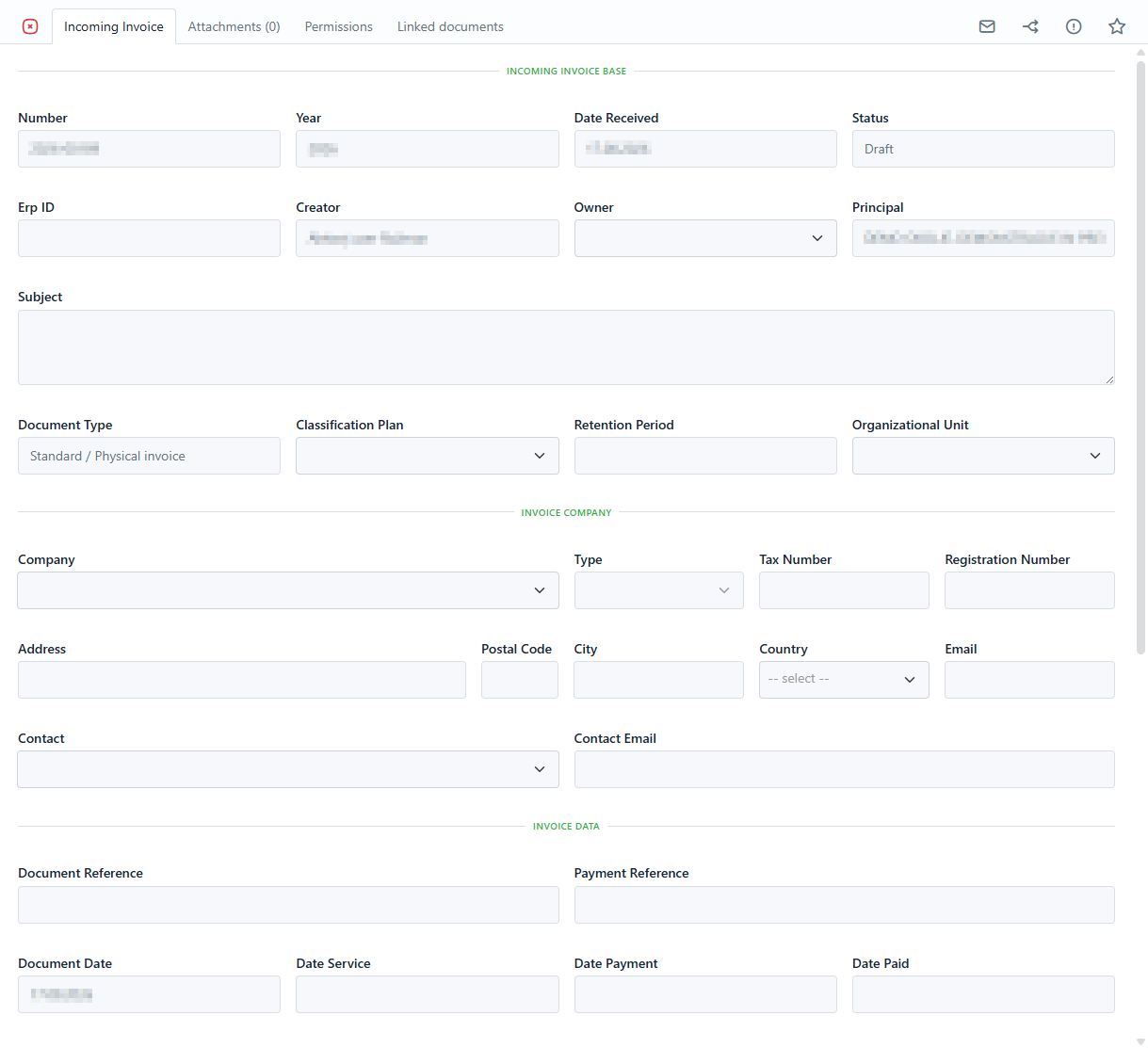
Metadata
- Display of all document data: - title, number, date, status, document type, ... - case, sender/recipient, reference, etc. - user comments and notes.
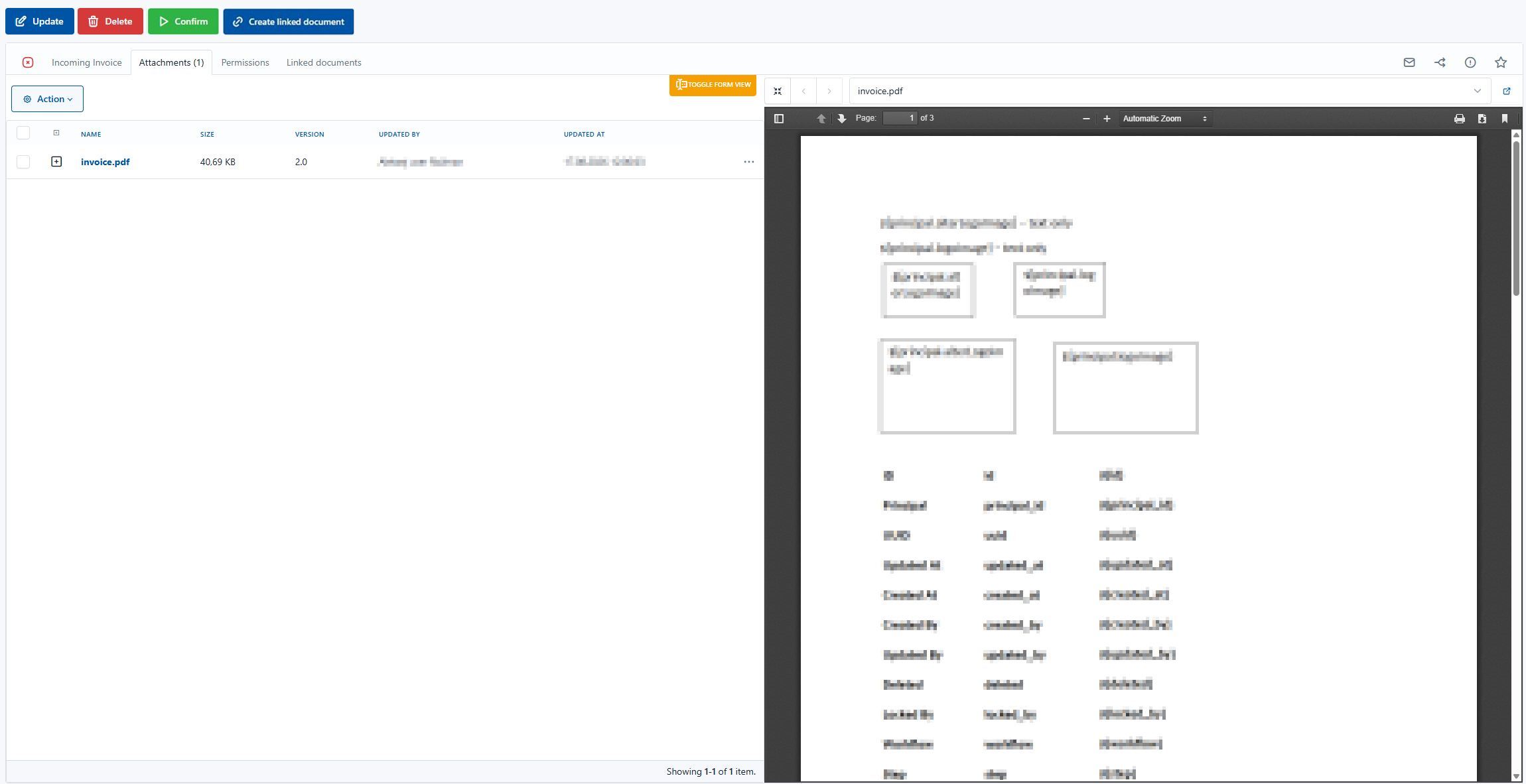
Attachments
- Displays the main content in PDF or another readable format.
- You can page through, zoom, and search the content.
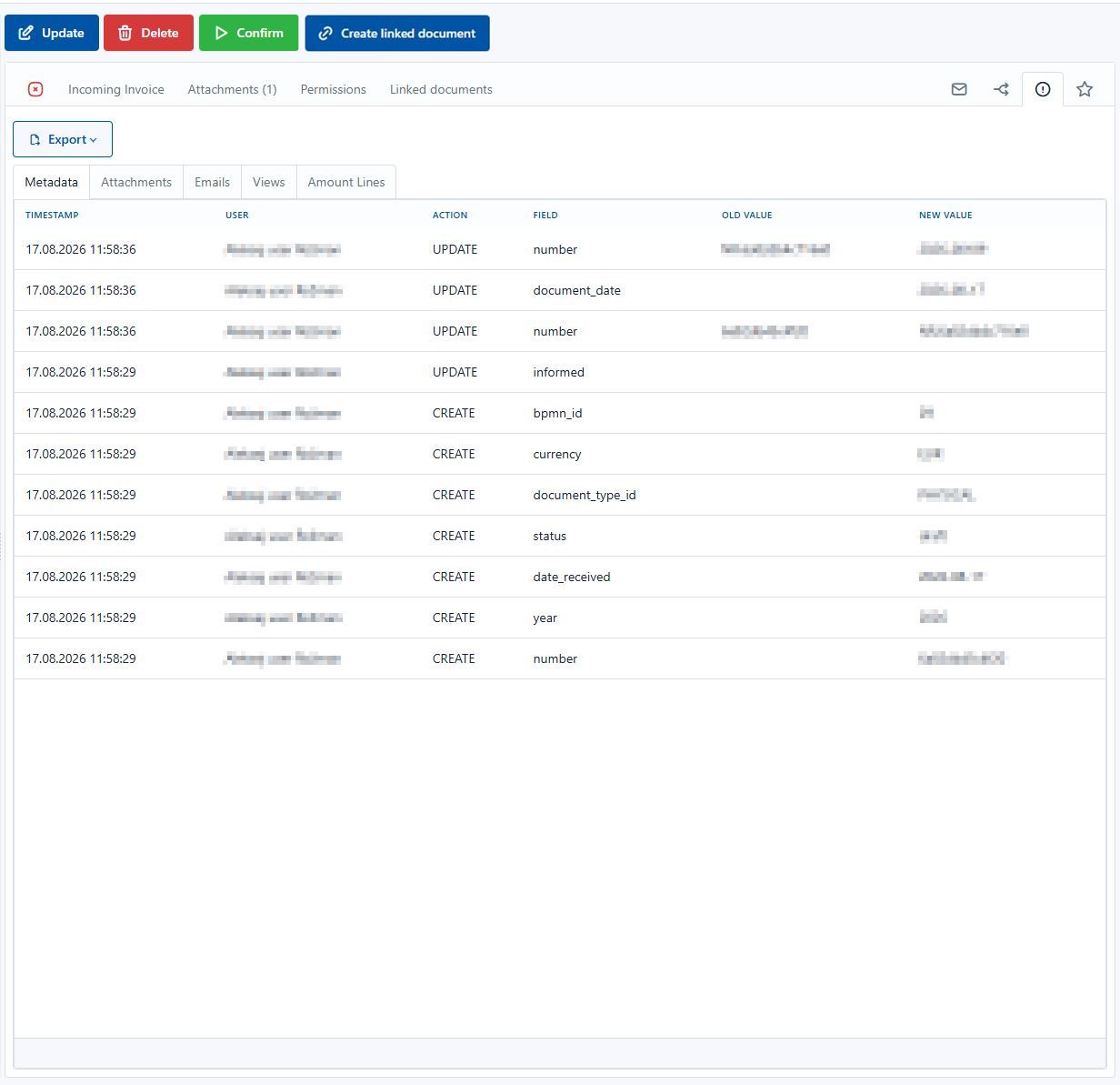
Audit trail
-
Display of all events related to the document:
- who created it, when it was signed, who opened it,
- whether it was forwarded, modified, closed, etc.
-
Display of the audit trail (if enabled).
Signing
This tab is displayed if the environment has an established connection to the mSign electronic signing solution and if an electronic signing process is active on the document.
- Display of the signing status (e.g. pending signatures, completed, rejected).
- Option to submit a signature if the user is part of the process.

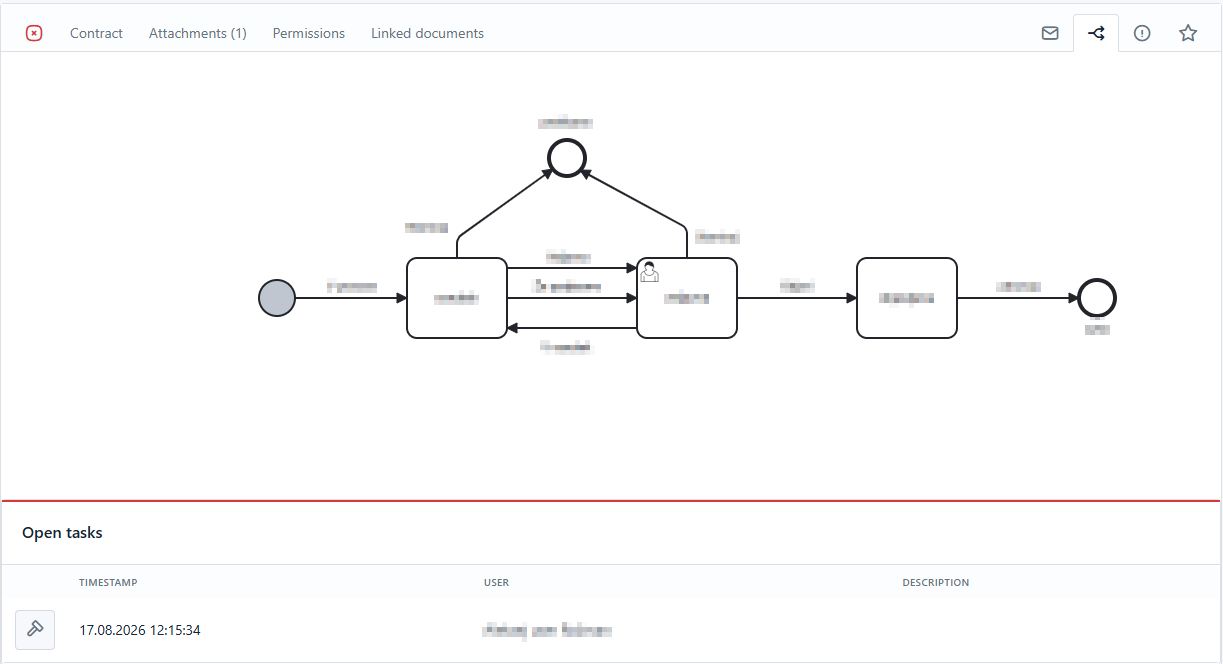
Workflow
Permissions
This tab displays users who have direct access to this document. You can grant additional access to an individual document in edit mode using the Add button on this tab.
Options while viewing
The user may have various functions available (depending on their rights):
- Search within content
- Adding comments
- Downloading the document
- Sharing the document
- Editing metadata
The available settings depend on your organization's configuration.