Editing attachment content
The document system allows you to view and, if needed, edit the attachments added to an individual document.
Options for editing attachments
Users with the appropriate rights can perform the following actions:
Editing an attachment
- renaming the attachment,
- changing the document content,
- deleting the attachment
How to edit an attachment?
- Open the document that contains attachments.
- Go to the "Attachments" tab.
- Additional options are available for each attachment. Select the "Edit" option (to change the content),
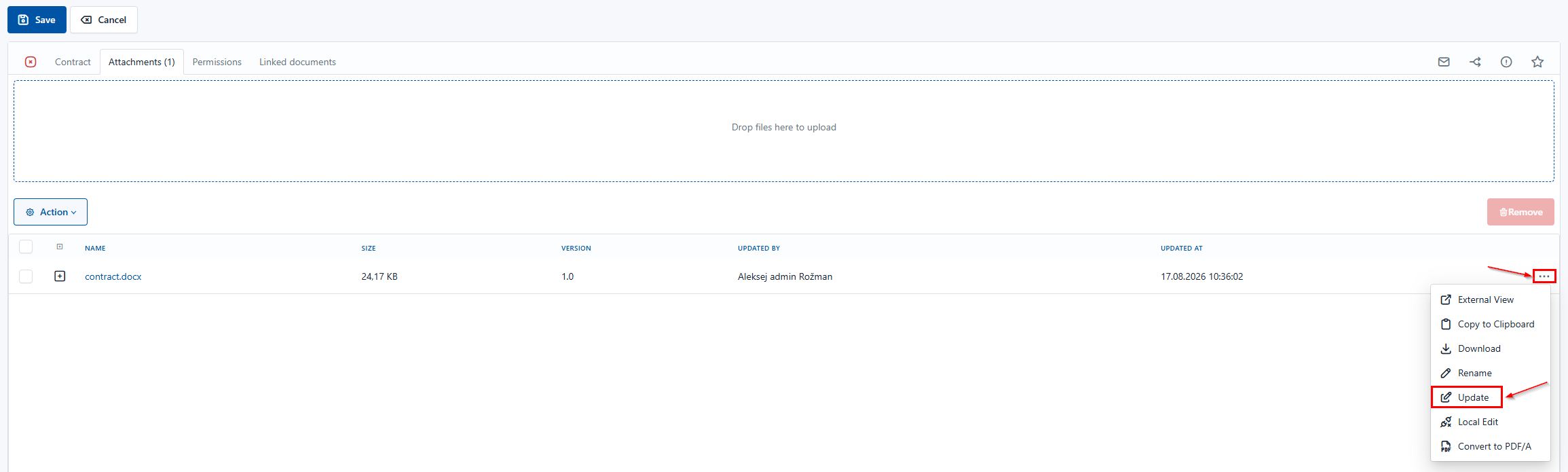
- The document opens and you can edit it as needed.
- When you finish editing, save the document
- In the system, close edit mode with Save. The system returns you to the document
- The system will show that a new version has been created, while you can still access previous versions.
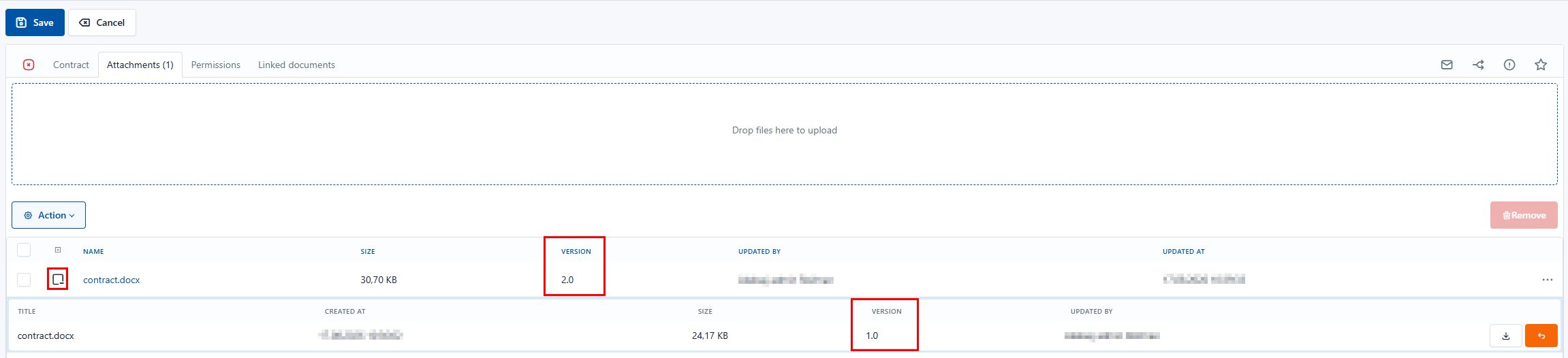
How to edit an attachment with a local program?
- Open the document that contains attachments.
- Go to the "Attachments" tab.
- Additional options are available for each attachment. Select the "Edit with local program" option (to change the content),
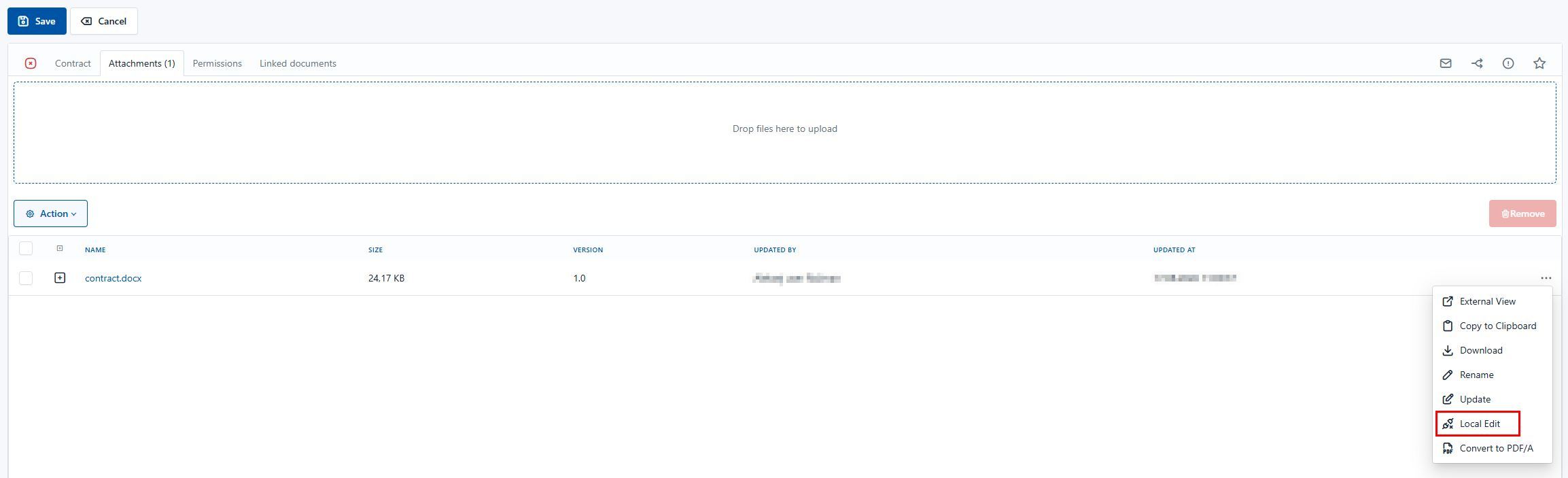
- The document opens and you can edit it as needed.
- When you finish editing, save the document.
To edit text locally, you must have the mDocsX component installed — see the chapter Installing the Local Editing Component.

-
In the system, close the document with Save and return to the system.
-
The system will show that a new version has been created, while you can still access previous versions.
Deleting an attachment
-
To remove an attachment from the document, mark the attachments you want to delete
-
Options for changes to the selected attachments open. The "Remove" button is displayed on the right side

-
The selected attachments are removed from the document
-
Removals are recorded in the audit trail.
Renaming an attachment
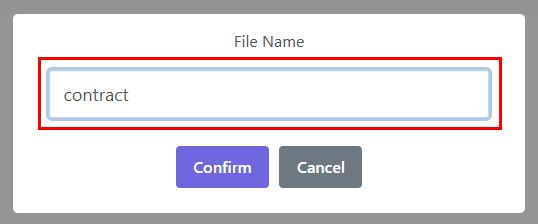
- Additional options are available for each attachment. Select the "Rename" option
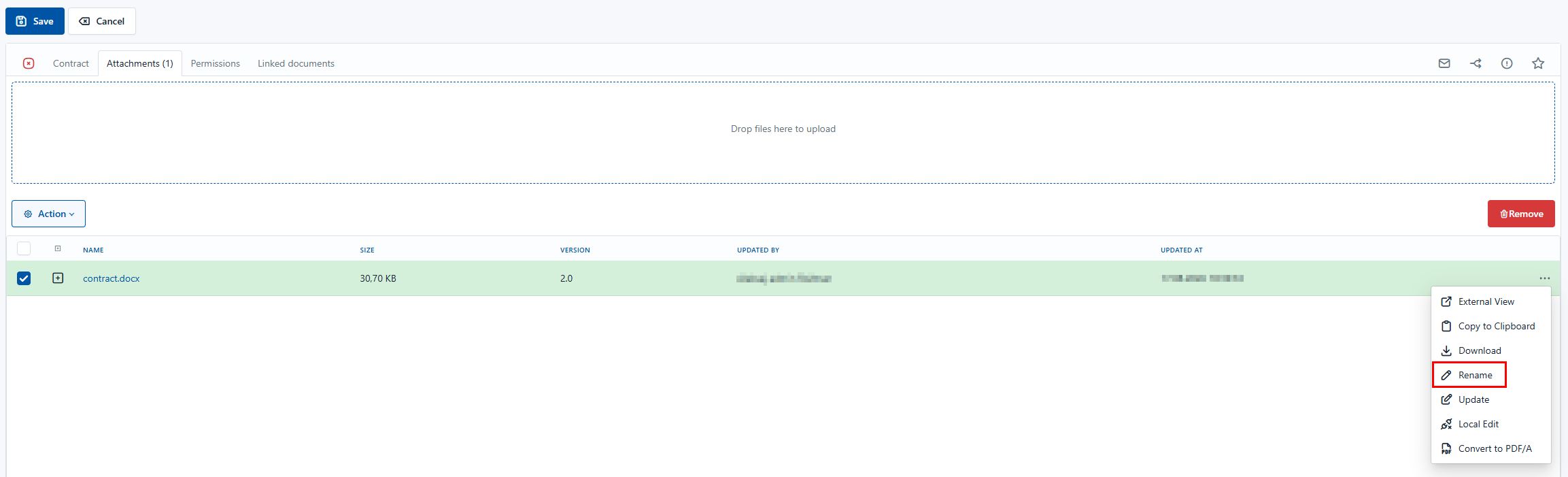
- A window opens for entering the new attachment name, and you confirm the change
Audit trail
Changes to attachments (replacement, deletion, addition) are recorded in the document's audit trail.