Forgotten Password
The available options depend on the configuration for your organization. Login types can be with a username and password, or with an active directory.
If you use the username and password login type and have forgotten your password for logging in to the system, you can easily create a new password using the steps below.
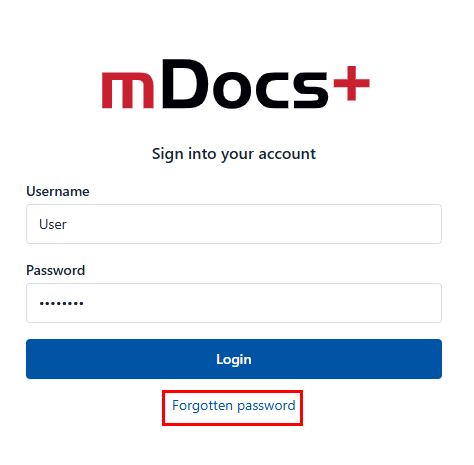
Accessing the "Forgotten Password" Function
On the login page, click the "Forgotten password?" link, located below the login field.
Entering Your Email Address
In the form that appears, enter your email address associated with your user account.
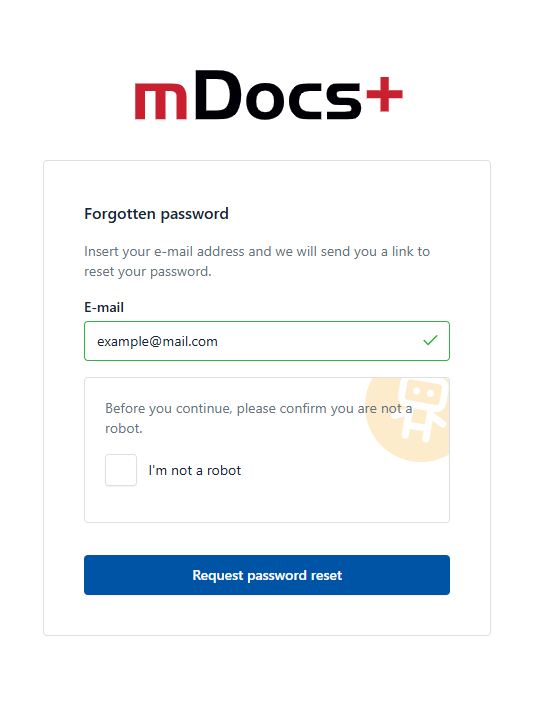
⚠️ Make sure you enter a correct, existing email address.
Check the box that verifies your identity, "I'm not a robot".
Click the "Request password reset" button.
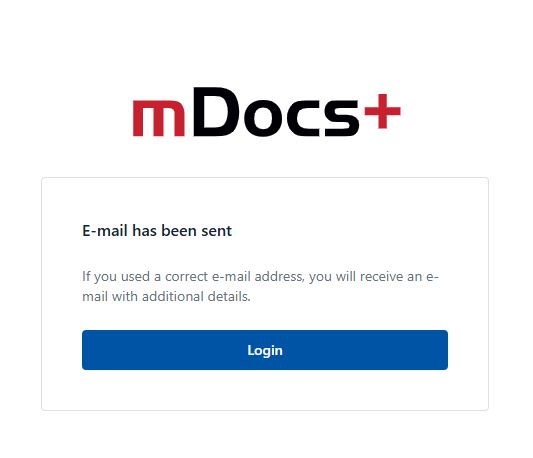
Receiving the Email
Within a few minutes, you will receive a message titled "Password reset for mDocs".
If you do not receive the message:
- Check your "Spam" folder
- Try again if necessary.
Following the Link
In the email message, click the included link to reset your password.
🔒 The link is time-limited (valid for 1 hour). If it expires, repeat the process from the beginning.
Setting a New Password
On the page that opens, enter a new password and confirm it by entering it again in the second field.
Recommendations for a secure password:
- At least 8 characters
- Use both uppercase and lowercase letters
- Add numbers and special characters (e.g. !, ?, #)
Click "Reset".
Logging in with the New Password
After a successful reset, you can log in with your username and new password.
If, despite following the instructions, you are still unable to log in, contact your system administrator or the person responsible for users in your organization.